Whoer.net alternatives: IP and proxy checkers

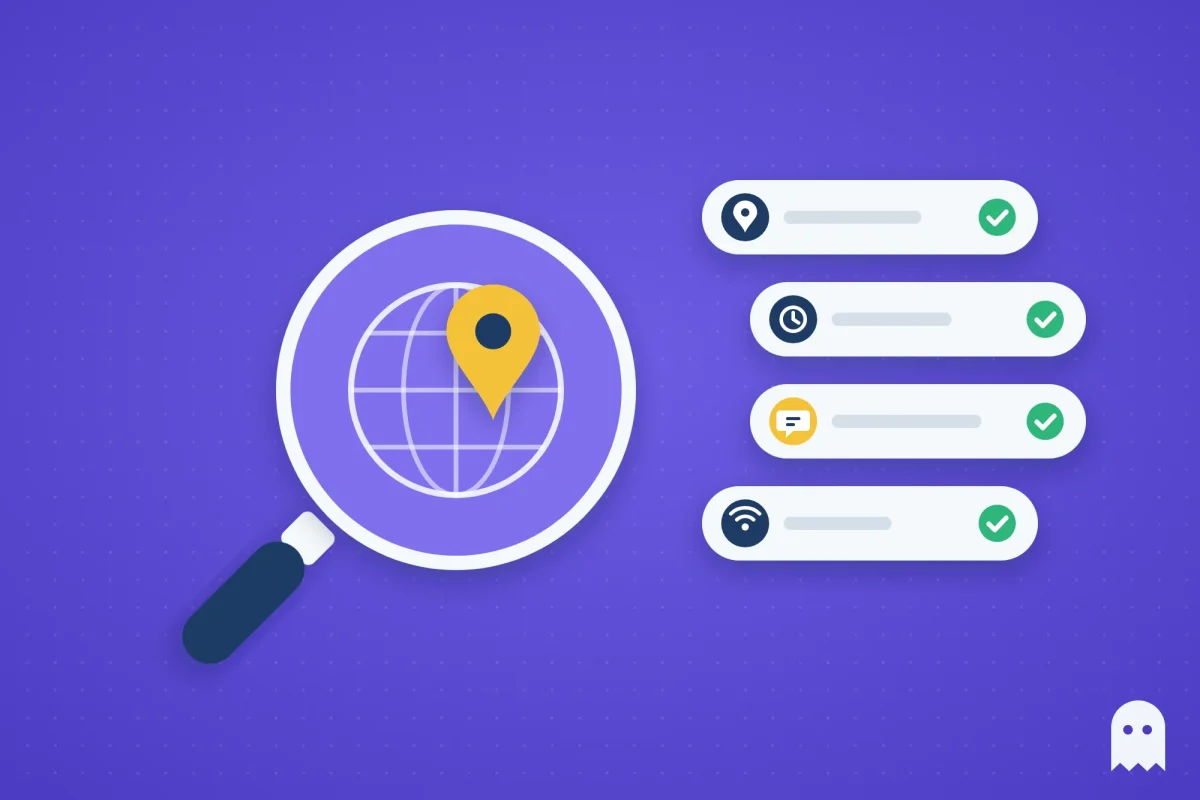
Whoer.net alternatives are useful when you want to double-check what websites see about you: your IP address, its country, your time zone and the IP that WebRTC can reveal. All the checkers below are free and don’t need an account.
The result is easy to misread, though. Whoer’s “disguise” score, for example, can show 100% on a home connection with no proxy at all. So instead of looking at a percentage, check whether all these details agree with each other.
Contents
- What an IP checker shows you
- Accovod IP and proxy check
- Other whoer.net alternatives
- How to read the result: IP, country, timezone, WebRTC
- Checking a proxy in a profile before you log in
- FAQ
- Cheat sheet
What an IP checker shows you
A website sees your IP address as soon as you open it. From the IP, it can work out your country, city and internet provider, and whether the address belongs to a home connection, a mobile network or a data center.
The rest comes from your browser: its time zone, its language settings, the User-Agent and, through WebRTC, sometimes a second IP address. A good checker shows both parts and compares them.
Sites pay attention when the two don’t match. If your IP is in Germany but your browser’s clock is on New York time, the visit looks suspicious. If WebRTC shows your home IP next to the proxy IP, the site sees both. That’s why a checker that only shows your IP isn’t enough. You need one that compares the IP with what the browser reports.
Accovod IP and proxy check
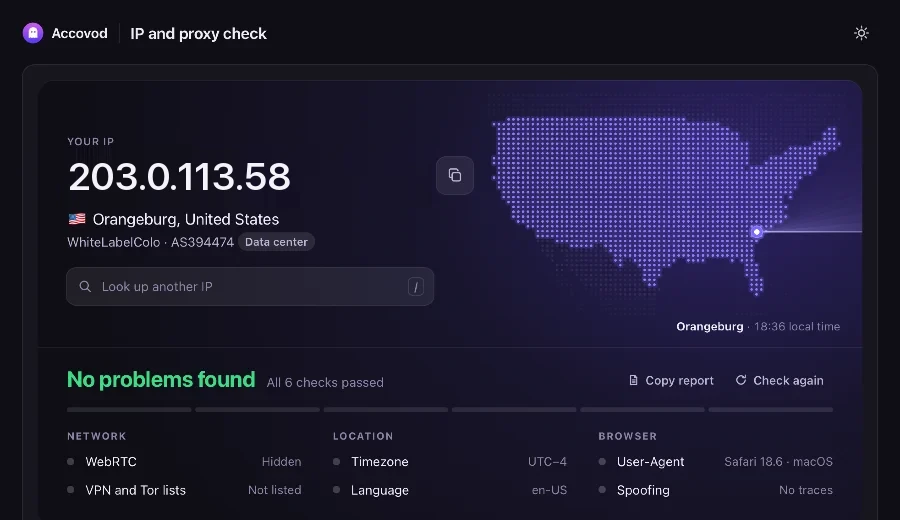
The Accovod IP and proxy check is a free page that works in any browser without signing up. It shows the IP address websites see, along with its city, country and provider, and tells you if the address belongs to a data center. Then it compares the IP with what your browser reports, including the WebRTC address, time zone, languages and the browser itself.
If everything matches, you’ll see “No problems found”. If something doesn’t, the page lists what to fix, for example which time zone to set. So instead of a single score, you see exactly what’s wrong.
There’s also a field for looking up any other IP address, for example one your proxy provider gave you. This shows where the address is located, who owns it and whether it belongs to a data center before you connect the proxy anywhere.
Other whoer.net alternatives
On whoer.net itself, you see your IP, provider and DNS, the Proxy, Anonymizer and Blacklist checks and a “Your disguise” score in percent. Further down the page, there’s a DNS leak test, a port scanner, an evercookie test and your WebRTC address. Most people go there just to check their IP, which is why “whoer my ip” is such a popular search.
That 100% on a home connection isn’t a bug. The score only checks that nothing on the page contradicts anything else, and a home connection without a proxy is perfectly consistent. The checker has no way of knowing which IP and country you need.
Here are four other checkers and when each of them comes in useful.
- BrowserLeaks is for looking into one specific test. Each test has its own page. The IP page shows your address, location, provider, local time and request headers, plus WebRTC, DNS and IPv6 leak tests, and other pages cover canvas, WebGL, fonts and the TLS fingerprint. There’s no overall verdict, so you read the values yourself.
- ipleak.net is handy when you also want to see which DNS servers your requests go through. Along with them, the page shows your IP addresses, the WebRTC address, the time zone of your IP and your browser’s headers.
- BrowserScan puts a lot on one screen. It opens with a summary of your IP, location, time zone, language, proxy, blacklist, DNS leak and bot detection, plus a “browser fingerprint authenticity” score in percent. Further down, it compares the time from your IP with the time from JavaScript.
- Pixelscan gives the shortest answer. It says whether your browser fingerprint is “consistent” or “inconsistent” and shows five cards: browser, location, proxy, fingerprint and bot check.
For a quick check before you log in, a page that compares the IP with the browser and points out the problem is enough. The detailed test pages are useful later, if you need to find the cause.
How to read the result: IP, country, timezone, WebRTC
First, run the check in the same browser profile you’ll use for the account. A check in your regular browser tells you nothing about the profile with the proxy.
Then start with the IP. It should be your proxy’s address, and its country should be the one you bought the proxy for. The city can differ from one checker to another, because each uses its own location database. Then make sure the time zone, browser language and WebRTC address fit that country.
If something doesn’t match, here’s what it means and what to do.
| What you see | What it means | What to do |
|---|---|---|
| Your home IP instead of the proxy | The browser doesn’t use the proxy | Check the proxy settings and don’t log in yet |
| The right IP, but the wrong country | The provider gave you a different location | Ask the provider. With some providers, the location is set in the proxy login |
| A time zone that differs from the IP | The browser takes the time from your computer | Set the profile’s time zone to the proxy’s |
| A language that doesn’t fit the country | The browser uses your system language | Set the language of the proxy’s country, such as en-US for the US |
| Your home IP in the WebRTC line | WebRTC bypasses the proxy | Use a browser profile that sends WebRTC through the proxy |
| “Data center” next to the provider | The IP belongs to a hosting company and gets more CAPTCHAs | For valuable accounts, use a residential or mobile proxy |
| A high score with your own IP | The score only checks that your data is consistent | Look at the IP and country, not the percentage |
If everything is fine in one checker, running five more won’t tell you anything new.
Checking a proxy in a profile before you log in
Check the proxy twice: once in the profile settings when you add it, and once on a checker page opened inside the profile. The first check tells you the proxy works. The second shows what websites will see when you open the account.
Accovod is our browser for working with many accounts on Windows and Mac, with an app for iPhone and iPad. Each profile has its own cookies, storage, proxy and a unique fingerprint, and all profiles are shown as a list in one window. Here’s how to check a proxy in it.
- Create a profile and paste the proxy (HTTP or SOCKS5) as host:port or host:port:login:password.
- Click the check mark next to the proxy. Accovod shows the IP, Fraud Score, country and time zone, and sets the profile’s language and time zone to match the proxy.
- Save the profile and open it.
- Open the Accovod IP check in that profile. If it says “No problems found”, the profile is ready.
- Log in to the account.
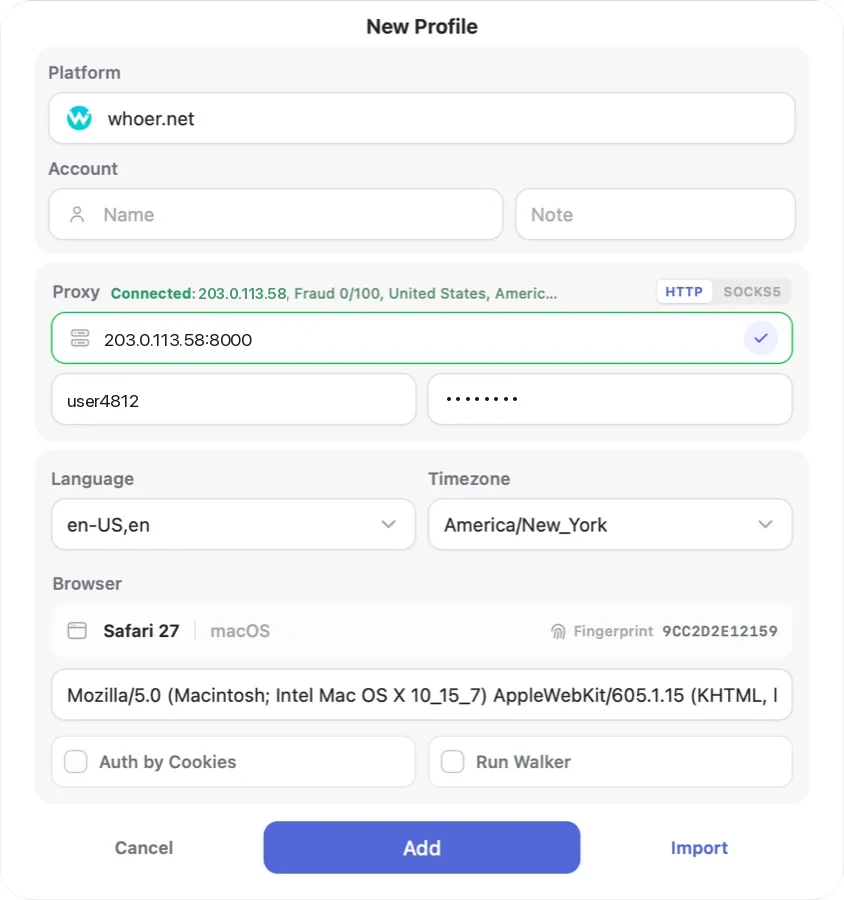
Fraud Score shows how suspicious the IP looks to anti-fraud systems. For new and valuable accounts, it’s better to keep it below 25. If the proxy stops working, pages in the profile won’t load. Accovod doesn’t switch to your real IP, so the account won’t suddenly appear from your home address. Accovod profiles also pass Pixelscan and BrowserScan checks.
You can read more about connecting a proxy in our docs. If you’re new to proxies, start with what a proxy is.
The Local plan costs $15 a month, and Cloud, which adds cloud profiles and team sharing, costs $25 a month (prices as of November 2026).
FAQ
What is a good alternative to Whoer?
Pick a checker that compares your IP with your browser’s time zone, language and WebRTC address and tells you what doesn’t match. The Accovod IP check does this for free and shows what to fix.
Why does my IP show a different country?
Checkers use different location databases, so the same IP can show up in a different city or even a different country. Your proxy provider may also have given you a different location from the one you ordered. And if you see the country of your own internet connection, your browser isn’t using the proxy.
What is a WebRTC leak?
WebRTC is the technology browsers use for video calls. To set up a call, it asks a server for your public IP, and in some setups this request bypasses the proxy. If a checker shows your home IP in the WebRTC line, websites can see it too.
Does a proxy change my timezone?
No. A proxy only changes your IP address. Your browser takes its time zone and language from your computer, so you have to set them separately. In Accovod, they follow the proxy after the check.
Is an IP check enough before logging in?
It only checks your connection. Websites also look at your browser fingerprint and cookies, so two accounts opened in the same browser can be linked even if they use different IPs. That’s why each account needs its own profile with its own proxy.
Cheat sheet
- If you have two accounts, give each one its own profile and proxy, and run the IP check in both before you log in for the first time. The Local plan is enough for this.
- If you have ten or more, check each new proxy in the profile settings, and run the IP check again whenever you change a proxy.
- If you work in a team, share a cloud group by email on the Cloud plan. Your teammates use the same profiles with the same proxies, and the account passwords stay with you.
- If any checker shows your home IP, don’t log in until the proxy works.