What Is a Proxy? How It Works and What It’s Used For

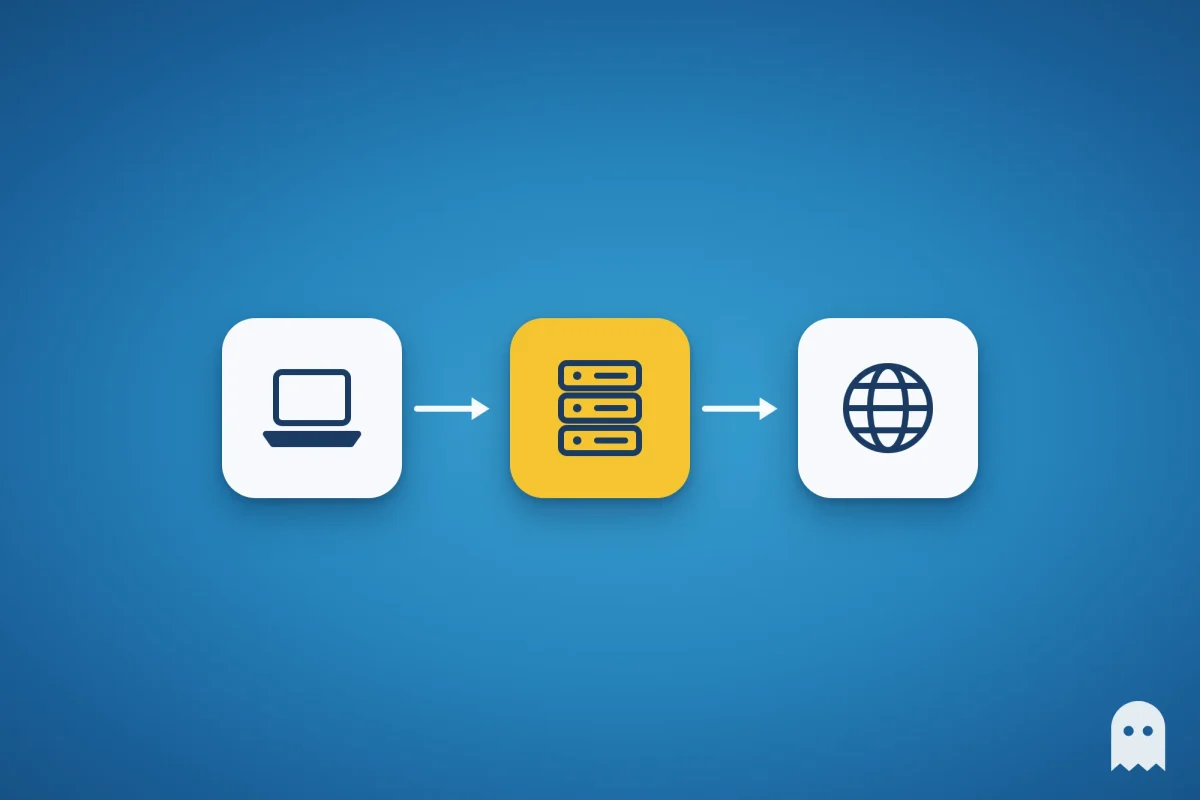
What is a proxy? It’s a server between your device and the websites you open. Your requests go through it, so a site sees the proxy’s IP address instead of yours. People use proxies to browse from another country, keep work accounts on separate IPs or filter office traffic. On its own, a proxy doesn’t encrypt traffic.
Below: how a proxy works, the main types, where to turn it on in your phone and computer settings, and how to check that it works.
Contents
- How a proxy server works
- What a proxy is used for
- Types of proxies
- Proxy vs VPN: what’s the difference
- How proxy addresses are written
- How to set up a proxy on iPhone and Android
- How to set up a proxy on Windows, Mac, Chrome and Firefox
- How to check that a proxy works
- Proxies for multiple accounts
- Common questions
How a proxy server works
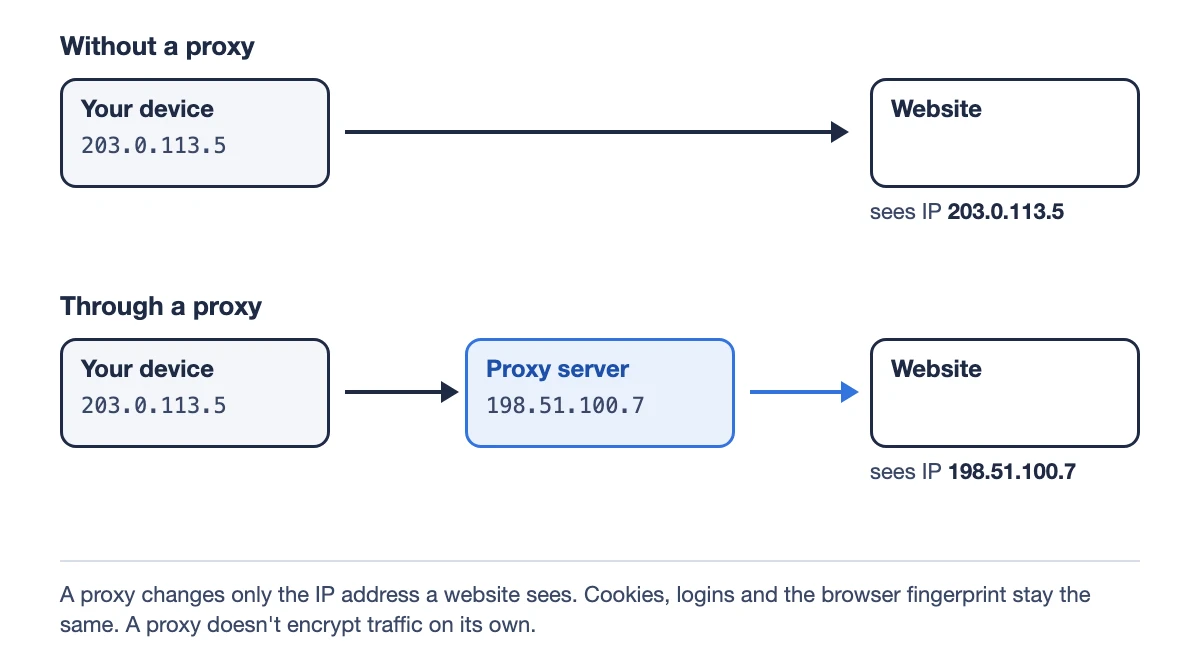
“Proxy” means someone authorized to act on your behalf, and a proxy server does exactly that online. Without it, your browser connects to a website directly, and the site sees your IP address. With a proxy, the browser sends the request to the proxy server, which forwards it to the site and passes the response back. To the website, the proxy is the visitor.
A proxy only changes your network address. Everything else looks the same to the site:
- cookies and logins: if you’re signed in, the site recognizes you through the proxy too;
- the browser fingerprint: screen size, fonts, graphics card, browser version;
- your system language and time zone. If the IP is in Germany but the browser’s time zone is New York, the site will notice.
What a proxy is used for
- Seeing a site or an ad from another country. Marketers check search results and ads the way users in a target region see them.
- Keeping work accounts on separate IPs. Platforms compare login addresses, and accounts that share an IP are easier to link.
- Collecting public data. Scrapers spread requests across many addresses so a site doesn’t throttle one IP.
- Filtering and speeding up office traffic. A corporate proxy blocks unwanted sites and caches popular pages.
- Keeping your IP from websites. It hides nothing from your internet provider, see the VPN comparison below.
Types of proxies
The main difference is where the IP address comes from. That decides how websites treat the proxy.
| Type | Whose IP it is | How sites see it | Typical tasks |
|---|---|---|---|
| Datacenter | A hosting provider | As data center traffic: more CAPTCHAs and checks | Scraping, testing, sites without strict protection |
| Residential | A home internet provider | As a regular user | Account work, checking local search results and ads |
| Mobile | A mobile carrier, 4G or 5G | Rarely banned: many subscribers can share one carrier IP | Social media, sign-ups, accounts that get frequent checks |
| ISP, or static residential | An internet provider, but hosted in a data center | Almost like residential, with a fixed address | Long sessions of one account on one IP |
More on mobile proxies: mobile proxies explained.
Other ways to classify proxies:
- By protocol. HTTP(S) proxies handle web requests and suit browsers. SOCKS5 relays connections from any app, supports UDP and username and password login (RFC 1928).
- By IP rotation. Static proxies keep the same address while you pay for it. Rotating proxies change the IP on a timer or via a link.
- By access. A shared proxy serves several customers at once, a private one serves only you. Shared proxies are cheaper, but other users can ruin the IP’s reputation.
- By anonymity. A transparent proxy passes your real IP to the site in the X-Forwarded-For header. An anonymous proxy hides your IP but reveals that a proxy is involved, for example with a Via header. An elite proxy reveals neither. Anonymity has nothing to do with changing IPs: that’s rotation.
- By side. All of the above are forward proxies that a user sets up. A reverse proxy sits in front of a website and takes requests instead of its server, as Cloudflare and nginx do.
Proxy vs VPN: what’s the difference
Both change the IP a website sees. They differ in scope and in who else can see your traffic.
| No proxy | Proxy | VPN | |
|---|---|---|---|
| IP the website sees | Yours | The proxy’s | The VPN server’s |
| What your internet provider sees | Sites you visit and the content of non-HTTPS pages | The same: the link to the proxy is usually unencrypted | Only a connection to the VPN server |
| What the server owner sees | – | Sites you visit and the content of non-HTTPS pages | Sites you visit and the content of non-HTTPS pages |
| What goes through it | – | The browser or app where the proxy is set | All of the device’s traffic |
| A separate IP for each account | No | Yes, one proxy per browser profile | No, one IP for the whole device |
Nobody in between can read HTTPS pages: they’re encrypted between your browser and the site. For multiple accounts, a proxy is more practical. A VPN switches the whole device, so all your accounts end up on one address again.
How proxy addresses are written
Providers give you a proxy as a string. Common formats:
| Format | What’s in it |
|---|---|
| 203.0.113.10:8080 | IP and port, no password. Only whitelisted IPs can connect |
| 203.0.113.10:8080:login:password | IP, port, username and password separated by colons |
| login:password@203.0.113.10:8080 | The same, with the credentials first |
| socks5://login:password@gate.provider.com:1080 | With the protocol and a domain instead of an IP |
The port is the entry point on the server. SOCKS uses port 1080 by default, HTTP proxies often use 8080 or 3128, but a provider can assign any port.
Pick the type your provider specifies: an HTTP setting won’t connect to a SOCKS5 address. With IP whitelisting there’s no username or password. The proxy only accepts connections from the IPs you add in your provider’s dashboard.
How to set up a proxy on iPhone and Android
On iPhone and Android, a proxy is set per Wi-Fi network and is off by default. There’s no regular proxy switch for mobile data. Some apps, such as Telegram, have their own proxy settings and ignore the Wi-Fi ones.
iPhone
- Open Settings → Wi-Fi.
- Tap the (i) button next to the network you’re connected to.
- At the bottom, tap Configure Proxy.
- Choose Manual and enter the server and port. If the proxy needs a username and password, turn on Authentication.
- Tap Save.
Automatic is for a proxy auto-config (PAC) file, which companies sometimes provide. The iPhone Wi-Fi settings only support HTTP proxies.
Android (labels as on Google Pixel, other brands may differ)
- Open Settings → Network & internet → Internet.
- Tap the network you’re connected to, then Edit.
- Open Advanced options → Proxy and choose Manual.
- Enter the proxy hostname and port, then tap Save.
On Samsung phones it’s under Settings → Connections → Wi-Fi → the gear next to the network → the advanced settings. Android warns that the browser uses this proxy but other apps may not. There are no username or password fields, and no SOCKS5 option.
To turn the proxy off, set the same option back to Off on iPhone or None on Android. Mobile data (APN) settings can have a Proxy field, but your carrier fills it in, and you shouldn’t change it.
How to set up a proxy on Windows, Mac, Chrome and Firefox
Windows 11. Settings → Network & internet → Proxy. Next to Use a proxy server, select Set up, turn it on, enter the IP address and port, and save.
macOS. Apple menu → System Settings → Network → Wi-Fi → Details → Proxies. Turn on the type you need: Web proxy (HTTP), Secure web proxy (HTTPS) or SOCKS proxy. Enter the server and port, turn on Proxy server requires password if needed, and click OK.
Chrome has no proxy settings of its own and uses the system ones. Settings → System → Open your computer’s proxy settings takes you to the same Windows or macOS window. Chrome doesn’t support SOCKS5 proxies with a username and password.
Firefox can use its own proxy. Search its settings for “proxy” and open Connection Settings: you’ll find No proxy, Use system proxy settings and Manual proxy configuration. For SOCKS v5, keep Proxy DNS when using SOCKS v5 turned on, otherwise site lookups bypass the proxy.
A system proxy applies to every program that supports it. To give each account its own IP, set the proxy in a separate browser profile instead of in the system.
How to check that a proxy works
- Without the proxy, open an IP checker such as ipinfo.io and note your address.
- Turn the proxy on and reload the page. The IP and country should change to the proxy’s.
- Check for WebRTC and DNS leaks. IP checkers usually include these tests, and your real address shouldn’t appear in them.
- Look up the address’s reputation, its fraud score. The lower it is, the fewer CAPTCHAs and checks you’ll get.
- Compare the browser’s time zone and language with the proxy’s country.
If something goes wrong:
| What you see | Common cause | What to do |
|---|---|---|
| Proxy error, proxy server not responding | Wrong address, port or type, the proxy is down, the plan expired | Compare the details with your provider’s dashboard, check your balance |
| Error 407 | Wrong username or password | Re-enter them. With whitelisting, add your current IP |
| Error 429 | Too many requests from this IP | Slow down or switch to another IP |
| A CAPTCHA at every step | The IP is blacklisted or from a data center | Use a residential or mobile proxy, check the fraud score |
Proxies for multiple accounts
Platforms compare the IP addresses accounts log in from. If ten accounts work from one address, they’re easier to link, and a restriction on one can affect the rest. That’s why the rule for work accounts is one account, one proxy.
Two more rules:
- the proxy’s country matches the account’s country: a US account is opened from a US IP;
- the browser’s language and time zone match the IP’s country.
The IP is only one signal. Accounts are also linked by cookies and the browser fingerprint, so a separate IP isn’t enough: each account needs its own browser profile. More in multi-account management and why you need an antidetect browser.
How to add a proxy to an Accovod profile
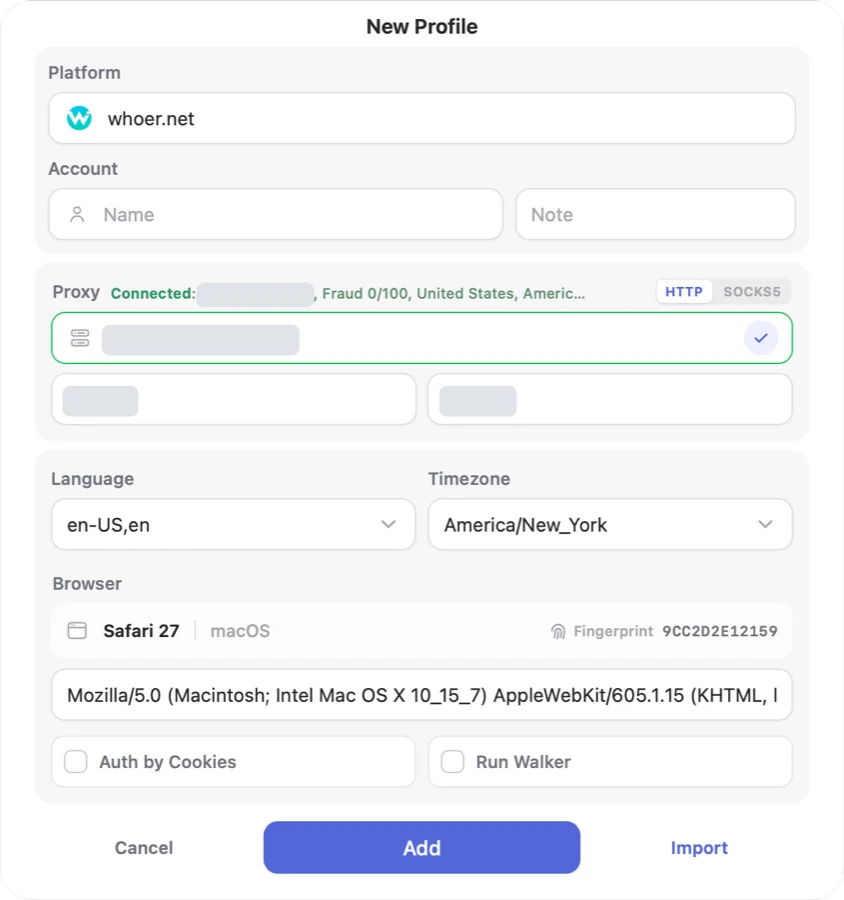
In Accovod, every profile has its own proxy, its own cookies and its own browser fingerprint. You set the proxy in the profile form:
- Choose the type: HTTP or SOCKS5.
- Paste the address as host:port or host:port:login:password. The username and password fill in their own fields.
- Click the check mark. Accovod sends a real request through the proxy and shows the IP, fraud score, country and time zone.
- Save the profile.
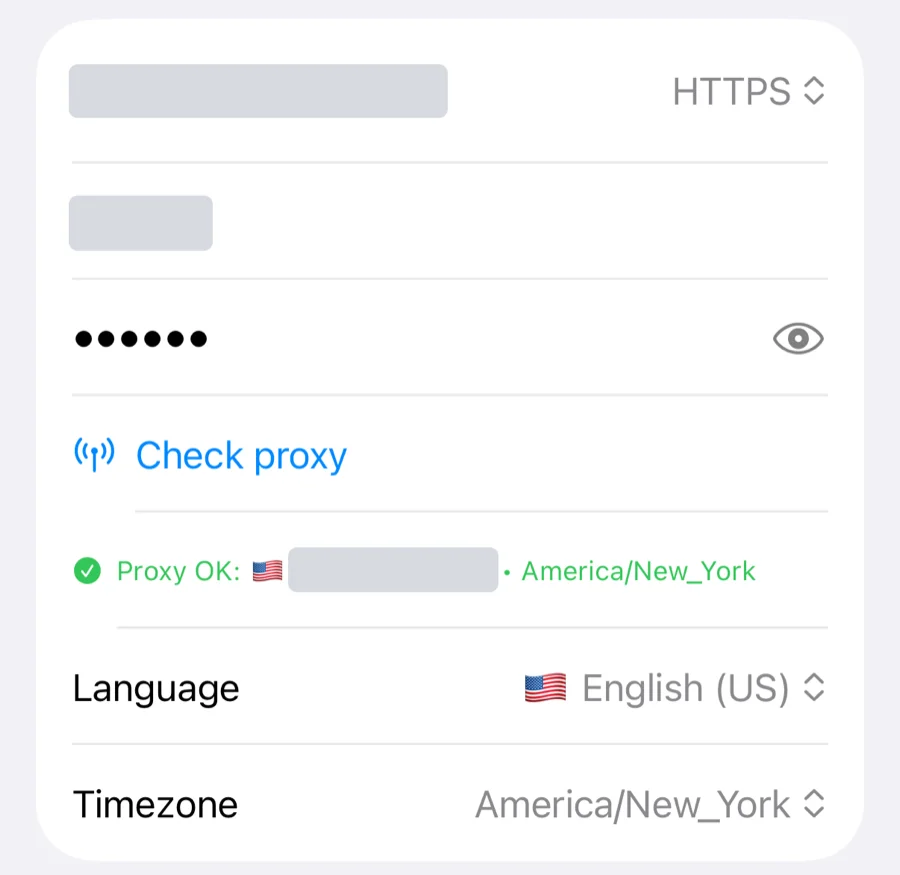
The iPhone app works the same way: address, type, username and password in the profile form, plus a Check proxy button. There the check shows the proxy’s IP, country and time zone.
On desktop, the fraud score reads like this: 0–25 is a clean IP, 26–60 is medium risk, and above 60 the address often shows up in spam or belongs to a data center. If the proxy stops responding, the profile won’t fall back to your real IP: pages simply won’t load.
Step by step in the docs: connecting a proxy and proxy check and fraud score. Accovod runs on Windows, macOS and iPhone.
Common questions
Does a proxy hide your IP address?
From websites, yes, if the proxy is anonymous and your browser doesn’t leak your IP through WebRTC or DNS. The proxy provider always sees your real IP, and your internet provider can see that you’re connecting to a proxy. A transparent proxy even passes your address to the site in a request header, so it won’t hide anything.
What’s the difference between an HTTP and a SOCKS5 proxy?
An HTTP proxy understands web requests and suits browsers. SOCKS5 works at a lower level: it relays connections from any app and supports UDP and username and password login. Both work for browsing, but Chrome doesn’t support SOCKS5 with a username and password. Use the type your provider specifies, or the proxy won’t connect.
Should a proxy be on or off on my phone?
Leave it off unless you need it. Open the current Wi-Fi network’s settings: Configure Proxy on iPhone, Proxy in the advanced options on Android. Off or None means the system proxy isn’t used. Apps like Telegram keep their own proxy settings, so check those inside the app.
What is proxy mode vs TUN mode?
Some network apps and VPN clients let you choose a mode. In proxy mode, the app runs a proxy on the device itself, and only programs set to use it or the system settings go through it. In TUN (tunnel) mode, the app creates a virtual network adapter, and all of the device’s traffic goes through it, like a VPN.
Are free proxies safe?
They’re fine for a one-off test, not for accounts. The owner of a free proxy sees which sites you open and can read and alter pages that don’t use HTTPS. IPs from public lists are usually blacklisted, so sites greet them with CAPTCHAs. Free proxies also drop out without warning, and your account ends up logging in from one address after another.
To keep your accounts on separate IPs, create a profile for each one in Accovod and give it its own proxy.