How to create a Google account without phone number verification

You can still create a Google account without phone number verification, but not every time. Google’s sign-up form marks the phone step as optional, and many sign-ups show a Skip button. On others, Google asks you to verify a phone anyway, either with an SMS code or with a QR code you scan on your phone.
Whether you get the Skip button depends on the attempt. You can’t switch it on, but you can avoid the things that make a sign-up look like one of many.
Contents
- Can you create a Google account without a phone number?
- How to make a Google account without a phone number, step by step
- What to do if Google still asks for a phone number
- How to create multiple Gmail accounts without them getting linked
- FAQ
- Cheat sheet
Can you create a Google account without a phone number?
You can. In its help article Create a Google Account, Google lists the steps and labels one of them “Optional: Add and verify a phone number for your account”.
You also get to choose what the account is built on. You can take one of the Gmail addresses Google suggests, make up your own, or use an email address you already have, even one that isn’t Gmail. With an existing email, Google sends a code to that inbox instead of an SMS to your phone.
So the form itself doesn’t require a phone number. In practice, Google decides on each sign-up whether to let you skip that step. If it doesn’t, you’ll need a phone, and the section below explains what that looks like now.
How to make a Google account without a phone number, step by step
There are two ways:
With a new Gmail address:
- Open the Google sign-in page and click Create account.
- Enter your name, birthday and gender.
- Pick one of the suggested Gmail addresses or type your own in Username.
- Enter and confirm a password, then click Next.
- At the phone step, click Skip if the button is there. If it isn’t, see the next section.
- Accept the terms and finish.
With an email you already have:
- Click Create account and choose For my personal use.
- Enter your basic info.
- Click Use your existing email and type your current address.
- Enter the code Google sends to that inbox.
- Create a password and follow the steps on screen.
The second way is the one to use if you need a Google account for a client or a project and don’t want a new Gmail inbox to look after. Your work email becomes the login, and YouTube, Google Ads or Analytics work with it just like with a Gmail address.
What to do if Google still asks for a phone number
Sometimes there’s no Skip button, and Google won’t let you go on without a phone. This can look two ways.
- An SMS code. You enter a number, Google texts you a code, and you type it in.
- A QR code. Google shows a QR code and asks you to scan it with your phone. The phone then opens a ready text message, and you send it to Google yourself. Google announced this change in February 2025 as a way to move away from sending SMS codes when people create accounts.
The QR step needs a real phone with a SIM card that can send texts. A number that only receives messages won’t get you through it.
Google doesn’t publish a list of reasons for asking. People who create accounts often say the phone step appears more often on sign-ups that look risky, but the exact trigger isn’t public.
What you can control is how the sign-up looks from Google’s side. None of this guarantees the Skip button, but it keeps an ordinary sign-up from looking like part of a batch. Our checklist on how to avoid bans is written for social networks, but the same habits apply here:
- Sign up from a browser that has never been used for other Google accounts.
- Use a separate IP for each account, and don’t create dozens of accounts in an hour from one proxy subnet.
- Keep the language and time zone in line with the IP’s country.
- Before signing up, browse a few ordinary sites so the browser doesn’t look brand new.
If Google still insists, use a phone and a number you own. A virtual number can sometimes get you through the SMS code, but not the QR step. Keep in mind that Google also uses the number to help you get the account back later. A number you don’t control can’t do that for you.
If the account matters, give it recovery details you will still have in a year.
How to create multiple Gmail accounts without them getting linked
One person can have several Google accounts. Google’s help on signing in to multiple accounts explains how to add them and switch between them without signing out.
That switcher works for your own personal and work accounts. It doesn’t work for ten client accounts. All of them sit in one browser, with the same cookies, the same IP and the same browser fingerprint. If Google flags one, the others are easy to connect to it.
| If… | Then… |
|---|---|
| You have no spare phone number | Sign up with your existing email instead of a new Gmail address |
| You need several Google accounts | Give each one its own browser profile, and give each profile its own proxy |
| You’re creating many accounts | Spread the sign-ups over several days instead of dozens in an hour from one proxy subnet |
| A new account was just created | Use it lightly for the first days: no ads, no mass actions yet |
| A team works in the accounts | Share the profiles, not the passwords |
This is what Accovod is built for. It’s a browser for people who run lots of accounts, on Windows and Mac, and cloud profiles also open in the app for iPhone and iPad. Each Google account gets its own profile with its own cookies, storage, fingerprint and proxy. The language and time zone follow the proxy’s country. All profiles sit in one list in one window, and you switch between accounts in one click, like tabs.
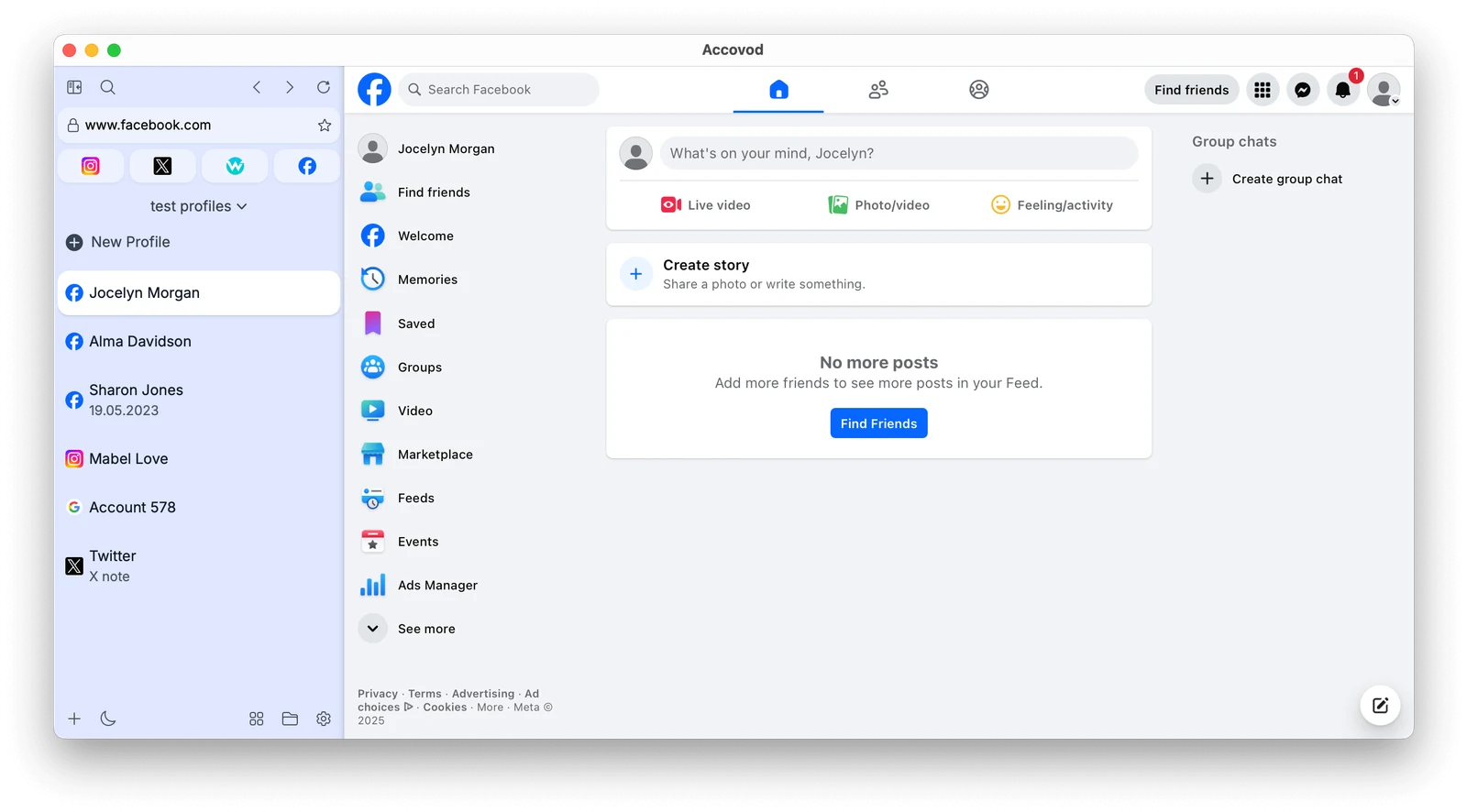
To set up a profile for a new Google account:
- Click New Profile. Type google.com in Platform and the client or project name in Account.
- Paste a proxy (HTTP or SOCKS5) from the same country as the account and click the check mark. Accovod shows the IP, the country and the Fraud Score.
- Click Add. The profile gets its own fingerprint, and its language and time zone match the proxy.
- Spend a few minutes on ordinary sites in the new profile. Walker can do this warm-up for you.
- Open accounts.google.com in the profile and sign up as described above.
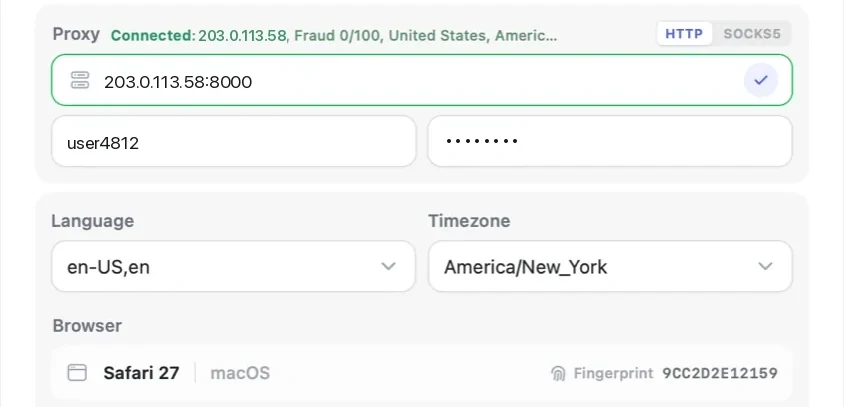
If it’s your first profile, the getting started guide walks through the same screen. When a proxy goes down, pages in the profile stop loading. Accovod doesn’t switch to your real IP, so a client’s account never shows up from your home connection.
If teammates work in the same accounts, put the profiles in a cloud group and share it by email. They open the accounts without ever seeing the passwords.
Accovod costs from $15 a month with unlimited profiles.
FAQ
Can you create a Gmail account without a phone number?
Often, yes. On the sign-up form the phone step is marked optional, and when Google shows a Skip button, you get a Gmail address without a number. On some sign-ups Google asks for a phone anyway, by SMS code or QR code, and then there’s no way around it.
How to create multiple Gmail accounts without phone verification?
Use a separate existing email for each account, and sign up for each one in its own browser profile with its own IP. Spread the sign-ups out over days. Even then, expect Google to ask for a phone on some of them, so keep one at hand.
Can I use a virtual phone number for Gmail?
For an SMS code, some people do. For the QR code step it won’t work, because your own phone has to send the text. There’s also a later risk: Google uses the number to help you recover the account, so a number you lose access to leaves you without that way back. For accounts that matter, use a number you’ll keep.
Can I use the same phone number for multiple Google accounts?
Yes, you can add one number to more than one account. Google limits how many accounts a single number can verify and doesn’t publish the limit. When you reach it, Google asks for a different number.
Do I need a separate browser for each Google account?
For two or three of your own accounts, Google’s account switcher is enough. For client accounts or anything you don’t want linked, use a separate profile with its own cookies and IP for each one.
Cheat sheet
- If you need one or two accounts, sign up with your existing email and skip the phone step if Google offers it.
- If you need ten, give each account its own profile and proxy, and create them over several days, not in one hour.
- If Google shows an SMS or QR prompt, use your own phone and a number you’ll still have when you need to recover the account.
- If a team works in the accounts, share profiles in a cloud group instead of sending passwords.