Getting started
Your first profile in 5 minutes
Step by step — create a profile in Accovod, connect and check a proxy, then log in to your account with a password or with cookies.
You’ll need a website address, proxy details (if you have a proxy), and either the account login or its cookies.
1. Create the profile
Section titled “1. Create the profile”-
Click New Profile at the top of the list on the left.
-
Start typing the site in Platform — for example
instagram.com. Accovod suggests popular and recent sites. -
Give the profile a clear name in Account:
Instagram — store 1. Use Note for a reminder to yourself.
The profile runs on WebKit — the Safari engine. There’s no engine to choose.
- Engine. Under Browser, pick Chrome or Edge (Beta). Chrome suits most tasks. The engine is chosen once, when the profile is created, and can’t be changed later.
- Auto-login. You can type
login:passwordin Account. On supported sites Accovod then opens the login page and fills in the details itself, and the login becomes the profile name.
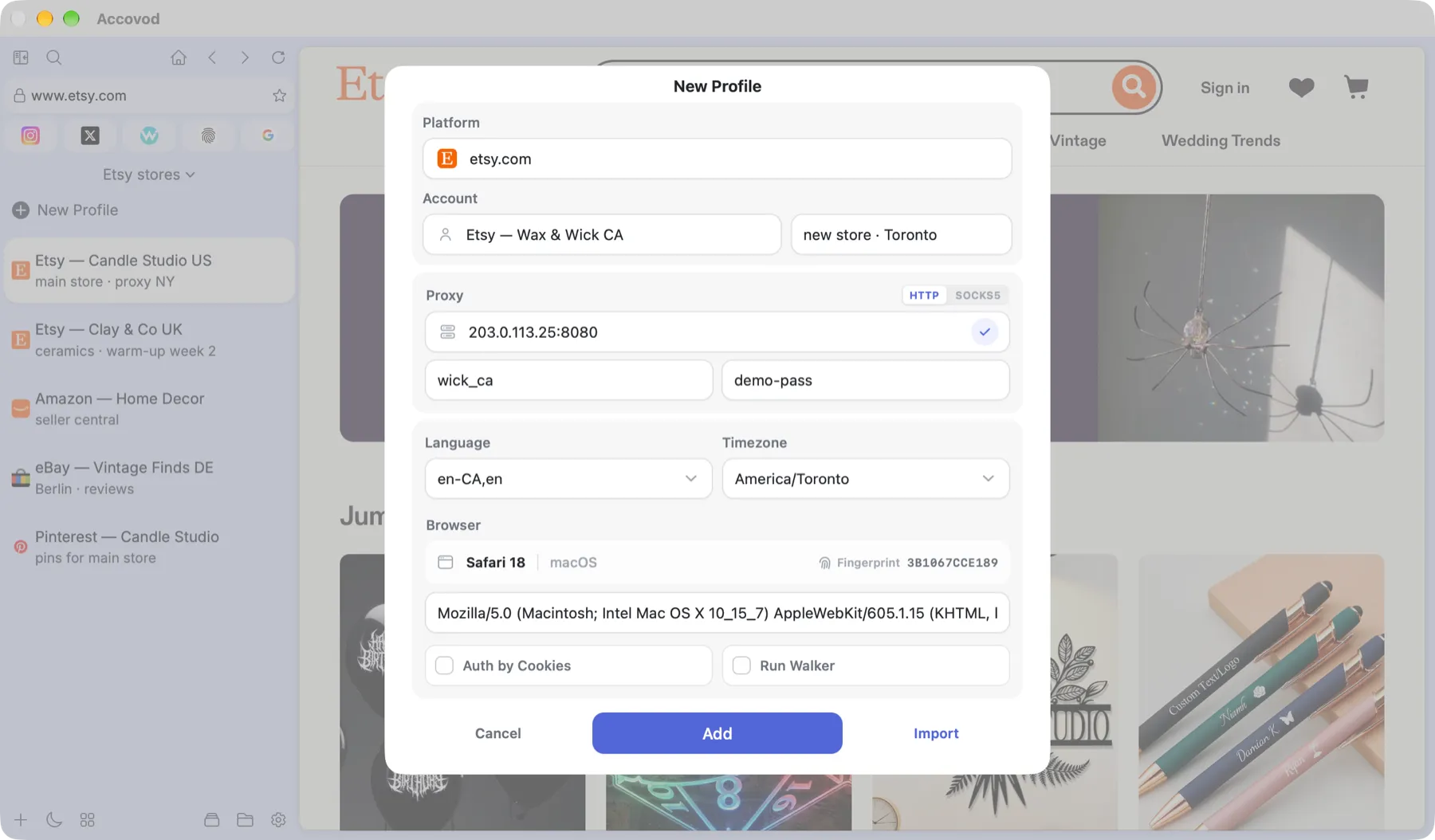
The New Profile form: site, name, note, proxy, language and timezone (macOS).
2. Connect a proxy
Section titled “2. Connect a proxy”-
Pick the type: HTTP or SOCKS5.
-
Paste the address as
host:portor ashost:port:login:password— login and password move into their own fields automatically. -
Click the check mark next to the field. Accovod sends a request through the proxy and shows the result: IP, country and how clean the IP is (Fraud Score).
No proxy? The profile will use your normal IP. That’s fine for one account, risky for several accounts on the same service. See Connecting a proxy.
3. Check language and browser
Section titled “3. Check language and browser”- Language and Timezone should match the proxy’s country.
- Browser shows which browser the profile presents itself as, and Fingerprint is a short ID of its fingerprint. Leave them as they are — the fingerprint is already unique.
4. Click “Add”
Section titled “4. Click “Add””The profile appears in the list on the left and opens right away.
5. Log in
Section titled “5. Log in”With login and password. Sign in on the site as you would in any browser. On Windows, if you entered login:password in Account, Accovod tries to sign in for you. The session stays in the profile, so you won’t need to log in next time.
With cookies. If you have the account’s cookies (exported with Cookie-Editor, for example), tick Auth by Cookies while creating the profile and paste them. For an existing profile, use Cookie Editor in the edit form. See Cookies and logging in.
What’s next: