Firefox Multi-Account Containers: how they work, limits, and alternatives for Chrome and Safari

Firefox Multi-Account Containers is a free extension from Mozilla that puts tabs into color-coded containers with separate cookies, so you can stay logged in to two accounts on the same site in one window. It keeps logins apart, but every container still shares your IP address and browser fingerprint.
This guide covers how to set containers up, what they keep separate and what they don’t, what to use in Chrome and Safari, and what to do when you need accounts that sites can’t link together.
Contents
- What Firefox Multi-Account Containers does
- How to set up containers in Firefox
- What containers keep separate and what they share
- Is there Multi-Account Containers for Chrome or Safari?
- How to run accounts that sites can’t link together
- FAQ
- Cheat sheet
What Firefox Multi-Account Containers does
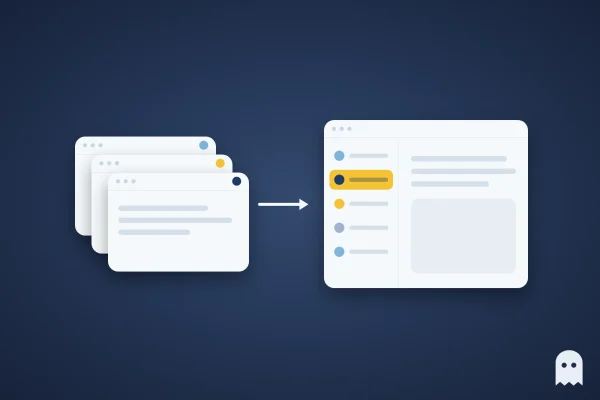
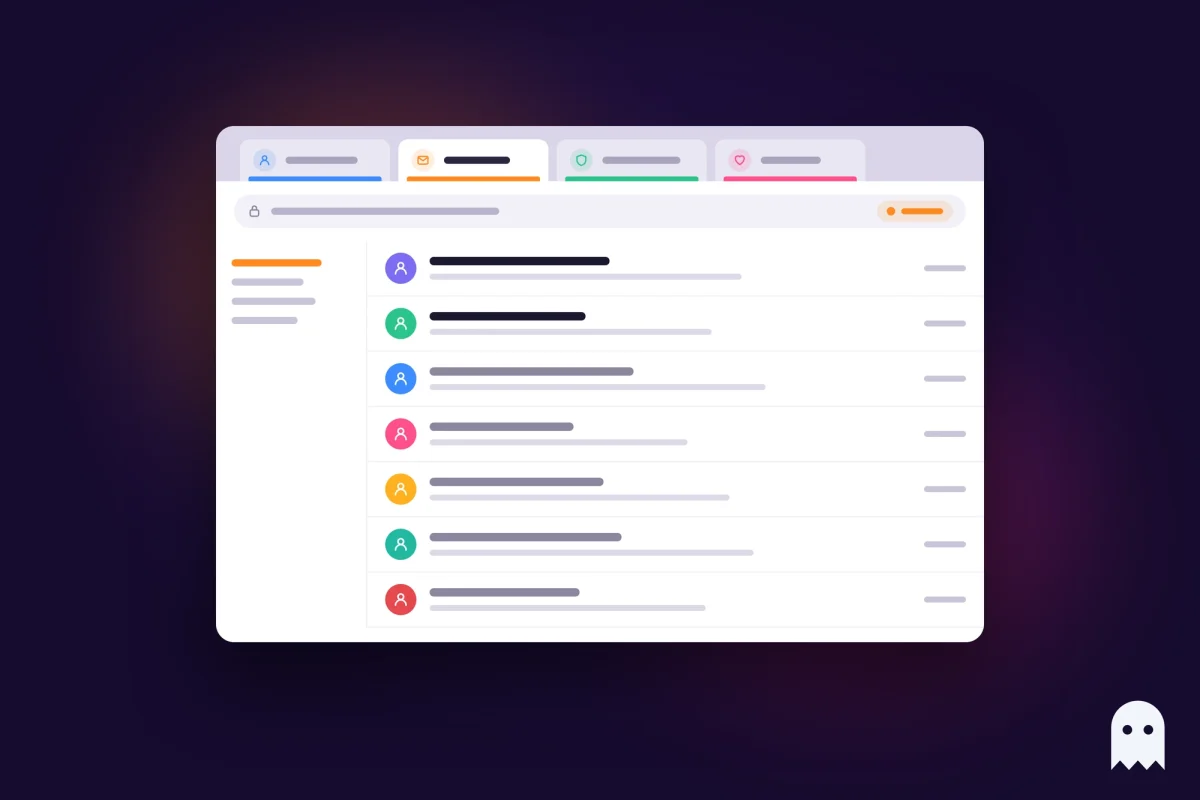
Multi-Account Containers splits your browsing into containers, and each one has its own cookies and site data. Log in to your work Gmail in a Work container and your personal Gmail in a Personal one, and both stay logged in side by side, in tabs of different colors.
Mozilla’s help page lists these uses.
- Sign in to several accounts on one site, for example personal and work email.
- Assign a site to a container, so it always opens there.
- Hide, show and sort tabs by container.
- Route a container through Mozilla VPN.
- Sync container names and site assignments across devices signed in to your Mozilla account.
The extension comes with four containers, Personal, Work, Banking and Shopping, and you can add your own with any name, color and icon. It’s an official Mozilla add-on with more than 400,000 users.
How to set up containers in Firefox
Setting up containers takes a couple of minutes, and all of it happens from the Containers icon in the toolbar.
- Open the Multi-Account Containers page on addons.mozilla.org, click Add to Firefox, then Add.
- Click the Containers icon in the toolbar. If you don’t see it, click the extensions button first. Pick a container, and a new tab opens in it.
- To make your own container, click Manage Containers, then New container, and choose a name, color and icon.
- To pin a site to a container, open the site, click the Containers icon and choose Always open this site in…, then pick the container.
A quicker way to open a container tab is to right-click the new tab button. If you want a container to open only its own sites, turn on Limit to designated sites in its settings, and every other site will open outside it.
Containers don’t work in Private Browsing windows or when Firefox is set to Never Remember History. If the Containers menu does nothing, check those two settings first.
What containers keep separate and what they share
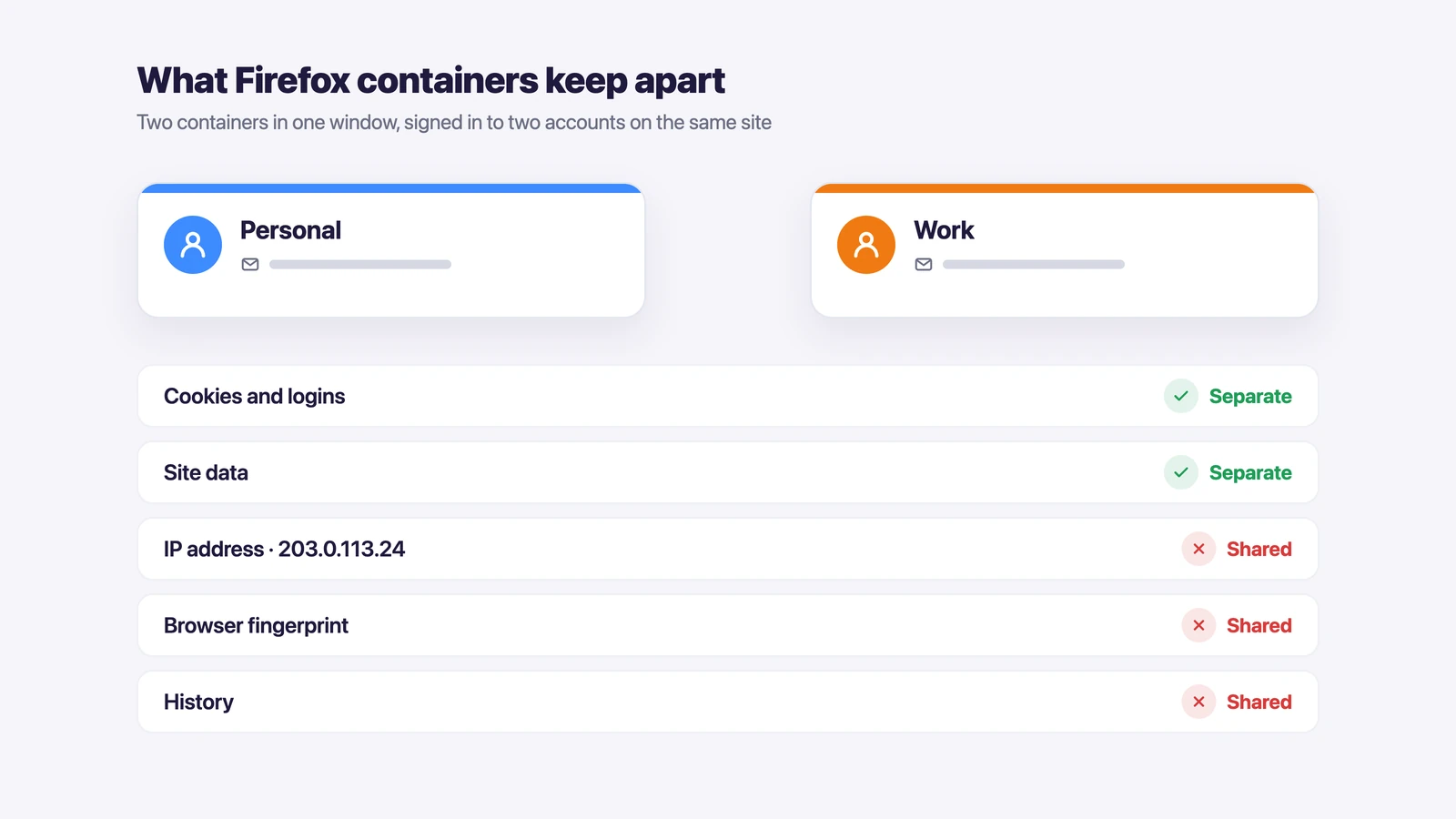
Containers keep cookies and site data apart, and that’s what keeps logins separate. Everything else about the browser stays the same for all of them.
| Separate in each container | Shared by all containers | |
|---|---|---|
| Cookies and logins | Yes | |
| Site data (local storage) | Yes | |
| IP address | Only with Mozilla VPN per container | Yes, by default |
| Browser fingerprint (screen, fonts, graphics card, user agent) | Yes | |
| Browser history and saved passwords | Yes | |
| Works on phones | No (not on Firefox for Android, and Firefox for iOS has no extensions) |
For personal and work email, that’s enough. For social networks, ad accounts and marketplaces it often isn’t, because those sites look at the IP and the browser fingerprint. Two accounts in two containers still come from one IP and one fingerprint, and to the site that looks like one person on one computer.
Is there Multi-Account Containers for Chrome or Safari?
No, Chrome and Safari don’t have containers. The closest thing in both is browser profiles, which keep cookies apart too, but each profile opens in its own window.
- Chrome profiles. Click your profile picture in the top right and add a profile. Each profile has its own cookies, history, extensions and bookmarks. The IP and fingerprint are still shared, as we explain in Chrome profiles vs browser profiles.
- Safari profiles. Since Safari 17 on the Mac and iOS 17 on iPhone, Safari has profiles with separate history, cookies, website data, extensions, Tab Groups and favorites. On a Mac, create one in Safari’s settings under Profiles.
- Edge profiles. They work much like Chrome profiles, one window per profile.
| Firefox containers | Chrome or Safari profiles | Accovod profiles | |
|---|---|---|---|
| Separate cookies for each account | Yes | Yes | Yes |
| Accounts side by side in one window | Yes | No, one window per profile | Yes |
| Own IP for each account | Only with Mozilla VPN | No | Yes, its own proxy |
| Own fingerprint for each account | No | No | Yes |
| On iPhone | No | Safari profiles only | Yes |
How to run accounts that sites can’t link together
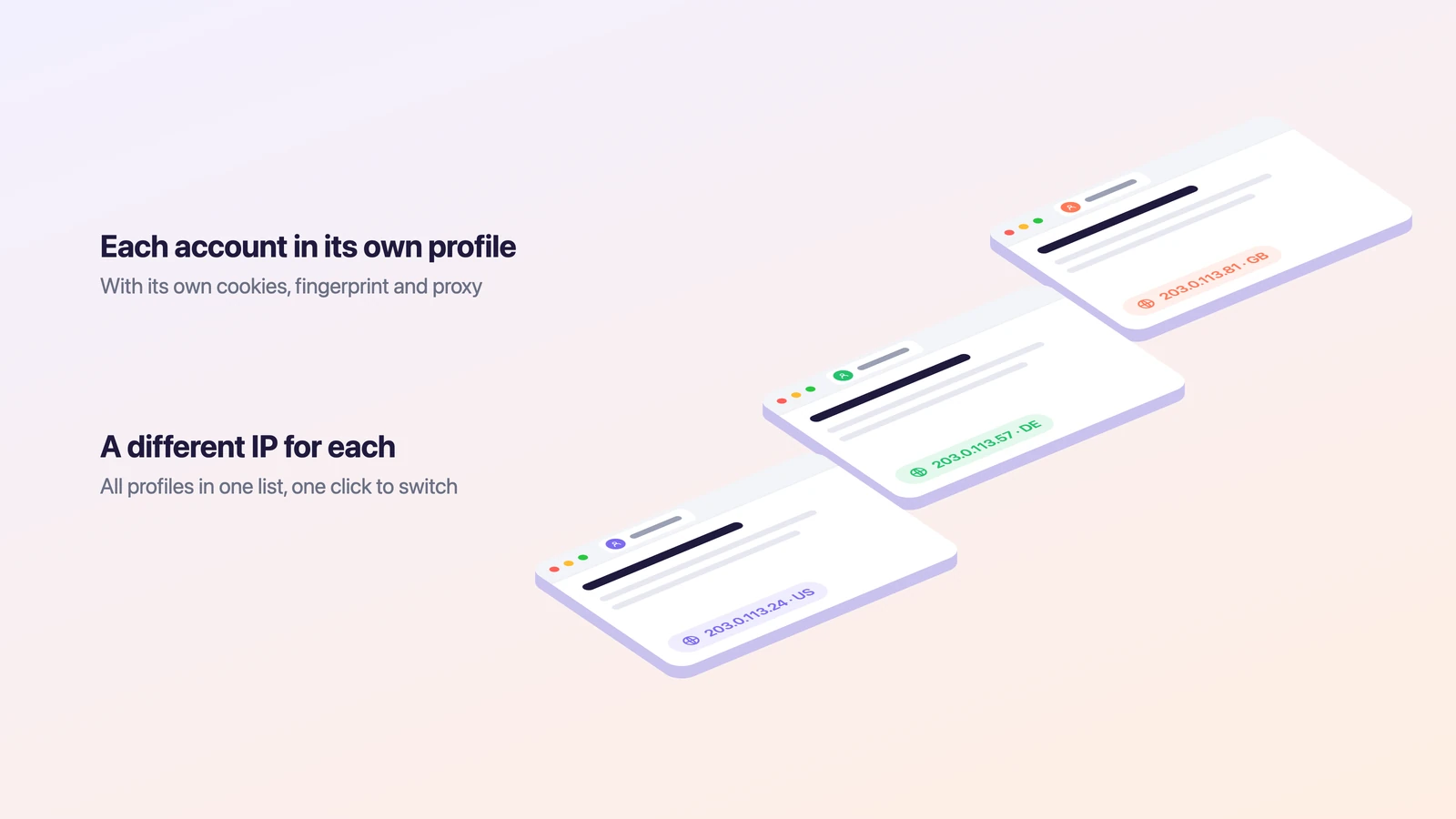
To keep accounts truly apart, each one needs its own cookies, its own fingerprint and its own IP. That’s how Accovod works. It’s our browser for people who run many accounts, whether personal, work, brand, project or client accounts. Every profile has its own cookies, fingerprint and proxy, so to a site they look like different computers. All profiles sit as a list in one window, and you switch between accounts in one click, like tabs.
Accovod runs on Windows and Mac, and there’s an app for iPhone and iPad on the App Store. A profile takes a minute to set up.
- Click New Profile. Type the site in the Platform field, for example instagram.com, and the account name in the Account field.
- Paste a proxy (HTTP or SOCKS5) from the account’s country and click the check mark. Accovod shows the IP, country and Fraud Score and sets the profile’s language and time zone to match the proxy.
- Click Add, open the profile and log in once. Next time, the profile opens already logged in.
- Add the profile to a cloud group if you need it on your iPhone or want to share it with a teammate by email.
If you used containers to give teammates access to accounts, cloud groups do the same job without passwords: your teammate opens the account already logged in, as shown in the teamwork docs. For a worked example on one platform, see our guide to Instagram on Mac and PC.
FAQ
Are Firefox Containers and Multi-Account Containers the same?
They’re related but not the same. Containers are built into Firefox, and Multi-Account Containers is Mozilla’s extension that adds the menu, site assignments and Mozilla VPN support on top. Mozilla recommends using them together.
Do Firefox containers hide your IP address?
No. All containers use your normal IP unless you connect a container to Mozilla VPN. Sites can also see that the containers share one browser fingerprint.
Does Multi-Account Containers work on Android or iPhone?
No. The extension doesn’t run on Firefox for Android, and Firefox for iOS doesn’t support extensions at all. On iPhone, Safari profiles or Accovod profiles are the options.
Is there a Firefox container extension for Chrome?
Chrome has no built-in containers, so the usual answer is Chrome profiles, one window per account. If you need several accounts in one window with a separate IP for each, use separate browser profiles in Accovod.
Do containers stop Facebook or Instagram from linking my accounts?
Not reliably. Containers separate cookies, but every account still comes from the same IP and the same browser fingerprint, so the site can still connect them.
Do containers sync between my computers?
Container names and site assignments sync between devices signed in to the same Mozilla account. The logins themselves don’t sync, so you log in to each site again on the other computer.
Cheat sheet
- If you need personal and work email open side by side, Firefox containers are enough.
- If you live in Chrome or Safari, use their profiles, one window per account.
- If the accounts are on social networks, ad platforms or marketplaces, give each its own profile with its own proxy and fingerprint.
- If you need the same accounts on your iPhone or want to share them with a team, use cloud profiles instead of containers.