AI agents & API
Connecting an AI agent
How to connect Claude Code, Codex, Claude Desktop, Cursor or Windsurf to Accovod on macOS and Windows over MCP — turning on the API, ready-made configs and testing.
1. Turn on the API
Section titled “1. Turn on the API”- Make sure Accovod is in Applications. An app started from Downloads or a disk image refuses to copy configs: that path stops working after a restart.
- In the menu bar, open Automation → Enable API / MCP access.
The menu then shows the API address, for example Local API: 127.0.0.1:25252.
- Open settings — the gear at the bottom of the profile list — and click API & MCP for AI agents.
- In the API and MCP for AI agents window, turn on Enable API and MCP.
The Server section then shows the API address, for example Running · http://127.0.0.1:25252. If it says Could not start, the reason is right next to it.
2. Connect your client
Section titled “2. Connect your client”Accovod prepares the settings for you: a copy button puts the right text on the clipboard, with the real path to accovod-mcp on your computer. Below is what it looks like. On macOS the path is always this one, as long as Accovod is in Applications. On Windows accovod-mcp.exe sits in the folder where Accovod is installed, next to Accovod.exe: C:\Path\To\Accovod stands for your folder.
Automation → Copy Claude Code command, then paste it into Terminal:
claude mcp add --scope user accovod -- '/Applications/Accovod.app/Contents/MacOS/accovod-mcp'--scope user matters: without it, Accovod is available only in the folder where you ran the command.
Automation → Copy Codex config (TOML) and add it to ~/.codex/config.toml (create the file if it doesn’t exist):
[mcp_servers.accovod]command = "/Applications/Accovod.app/Contents/MacOS/accovod-mcp"args = []Or with one Terminal command:
codex mcp add accovod -- '/Applications/Accovod.app/Contents/MacOS/accovod-mcp'Restart Codex.
Automation → Copy MCP config (JSON), then in Claude Desktop open Settings → Developer → Edit Config and add the block to claude_desktop_config.json:
{ "mcpServers": { "accovod": { "command": "/Applications/Accovod.app/Contents/MacOS/accovod-mcp", "args": [] } }}If the file already has mcpServers, add just accovod inside it. Restart Claude Desktop.
Automation → Copy MCP config (JSON) and add it to:
- Cursor —
~/.cursor/mcp.json - Windsurf —
~/.codeium/windsurf/mcp_config.json
The config text is the same as for Claude Desktop.
The Claude Code button in the API and MCP for AI agents window, then paste the command into a terminal (PowerShell or Command Prompt):
claude mcp add --scope user accovod -- "C:\Path\To\Accovod\accovod-mcp.exe"--scope user matters: without it, Accovod is available only in the folder where you ran the command.
The Codex button in the API and MCP for AI agents window, then add the text to %USERPROFILE%\.codex\config.toml (create the file if it doesn’t exist):
[mcp_servers.accovod]command = 'C:\Path\To\Accovod\accovod-mcp.exe'args = []The path is in single quotes so TOML doesn’t trip over the backslashes. Restart Codex.
The JSON button in the API and MCP for AI agents window, then in Claude Desktop open Settings → Developer → Edit Config and add the block to claude_desktop_config.json:
{ "mcpServers": { "accovod": { "command": "C:\\Path\\To\\Accovod\\accovod-mcp.exe", "args": [] } }}If the file already has mcpServers, add just accovod inside it. Restart Claude Desktop.
The JSON button in the API and MCP for AI agents window, then add the text to:
- Cursor —
%USERPROFILE%\.cursor\mcp.json - Windsurf —
%USERPROFILE%\.codeium\windsurf\mcp_config.json
The config text is the same as for Claude Desktop.
The port and token aren’t written into the config: accovod-mcp reads them from control.json on every call. Restarting Accovod doesn’t require any edits.
3. Test the connection
Section titled “3. Test the connection”Ask the agent: “Check the Accovod status and show my profiles.” It will call app_status and profiles_list.
To test without an agent:
/Applications/Accovod.app/Contents/MacOS/accovod-mcp --healthIn Command Prompt (cmd):
"C:\Path\To\Accovod\accovod-mcp.exe" --healthWhere to manage the API
Section titled “Where to manage the API”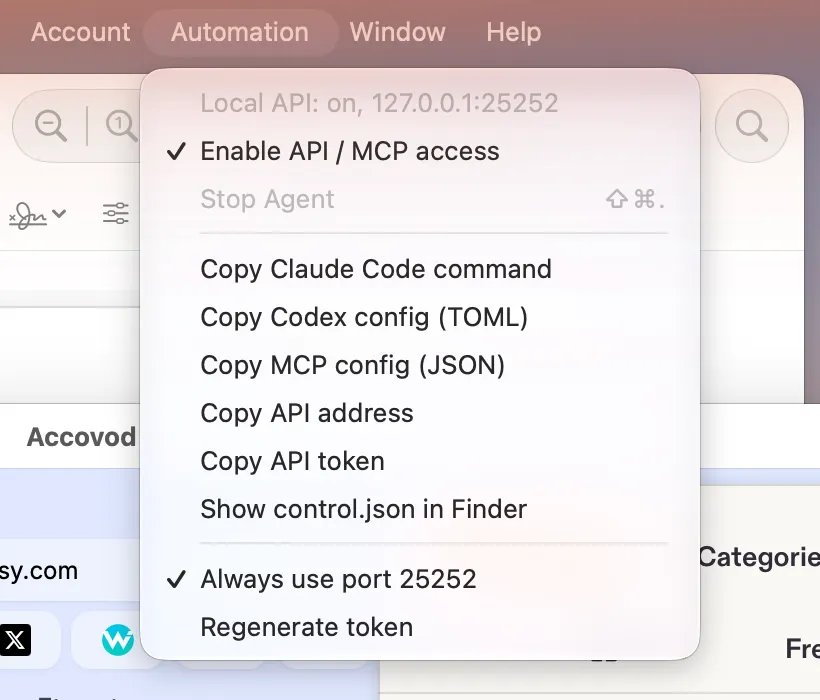
The Automation menu: turning on the API, ready-made configs and the token.
| Automation menu item | What it does |
|---|---|
| Enable API / MCP access | Turns the API on and off. Off by default. |
| Copy Claude Code command / Copy Codex config / Copy MCP config | Ready-made client settings. |
| Copy API address / Copy API token | Address and token for your own scripts. |
| Show control.json in Finder | The file with the current port and token. |
| Always use port 25252 | On by default: the API runs on port 25252, or on any free port if another program holds it. Turn it off and Accovod picks a random free port on every launch. |
| Regenerate token | Issue a new token. The old one stops working immediately. |
| Stop Agent ⇧⌘. | Stop the agent. Shown while an agent is working. |
The API and MCP for AI agents window opens from settings with the API & MCP for AI agents button.
| Window element | What it does |
|---|---|
| Enable API and MCP | Turns the API on and off. Off by default. The server state and address are shown next to it. |
| Always use port 25252 | On by default: the API runs on port 25252, or on any free port if another program holds it. Turn it off and Accovod picks a random free port on every launch. |
| Agent | Whether an agent is connected: Not connected, Connected, Working or Stopped. The Stop the agent / Resume the agent button shows while an agent is connected or stopped. |
| Claude Code / Codex / JSON | Ready-made client settings. |
| New token | Issue a new token. The old one stops working immediately. |
The address and token for your own scripts are in %APPDATA%\Accovod\control.json — see Local HTTP API.
Troubleshooting
Section titled “Troubleshooting”- “Accovod is not running” / no response — open Accovod and check that the API is on: Enable API / MCP access on macOS, Enable API and MCP on Windows.
- The agent doesn’t see the tools — restart the client after editing its config. In Claude Code, check with
claude mcp list. UNAUTHORIZED— the token was changed (Regenerate token on macOS, New token on Windows). MCP picks up the new one by itself; paste it into your own scripts again.- macOS: a copy item refuses to work — move Accovod.app to Applications and launch it from there.
- Windows: the window says “Not found: …accovod-mcp.exe” — update Accovod: the MCP server ships with it and sits next to
Accovod.exe.