Profiles
Editing and deleting profiles
How to change a profile in Accovod — proxy, language, User-Agent and cookies. Renaming, notes, rebuilding the tab, reordering the list and deleting.
Profile menu
Section titled “Profile menu”Right-click a profile in the list:
| Item | What it does |
|---|---|
| Edit | Opens the edit form: name, note, proxy, language, timezone, User-Agent, cookies. |
| Rename | Rename right in the list. Enter saves. |
| Note | Edit the note right in the list. |
| Delete | Delete the profile. |
The pencil that appears when you hover a profile card also opens the edit form.
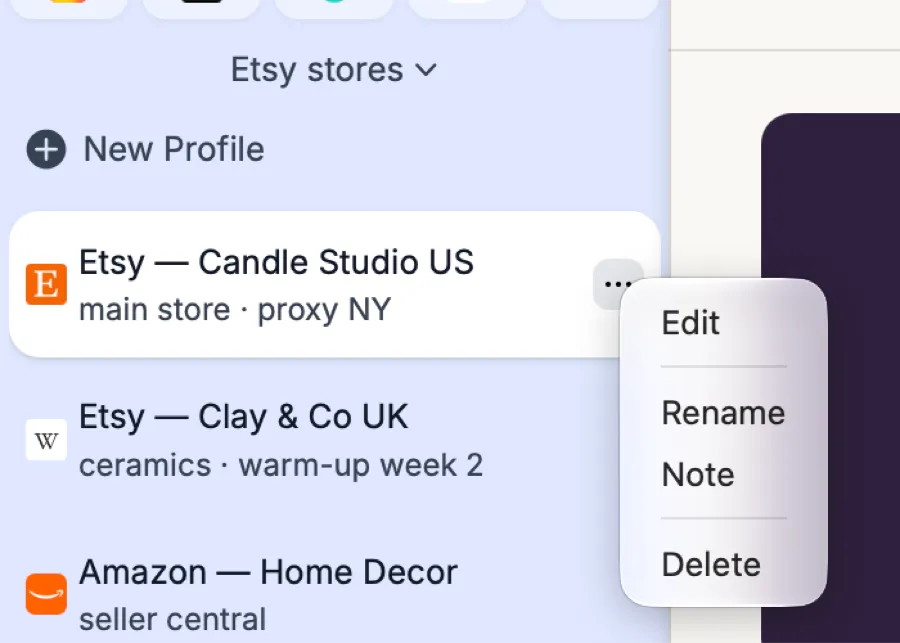
The profile menu: Edit, Rename, Note and Delete.
Hover a profile in the list and click the pencil to open the menu:
| Item | What it does |
|---|---|
| Edit | Opens the edit form: name, note, proxy, language, timezone, User-Agent, cookies, login details. |
| Rename | Rename right in the list. |
| Note | Edit the note right in the list. |
| Delete | Delete the profile. |
Right-clicking a profile in the list opens a quick menu: Edit profile and Synchronizer — see Synchronizer.
What you can change
Section titled “What you can change”Edit Profile offers everything the create form does: proxy, Language, Timezone, User-Agent and Cookie Editor. Click Save and the profile is rebuilt with the new settings. Cookies and logged-in accounts are kept.
On Windows, More adds:
- Login Data — login and password as
login:passwordfor auto-login on supported sites; - Mute Profile — mute only this profile;
- Clear Cache — clear the profile’s cache. Cookies and logins are kept.
On Windows, a profile’s engine (Chrome or Edge) can’t be changed after creation.
Fingerprint values — Canvas, audio, screen, CPU, memory — can’t be edited by hand; Accovod generates them. If you need a “new computer”, create a new profile.
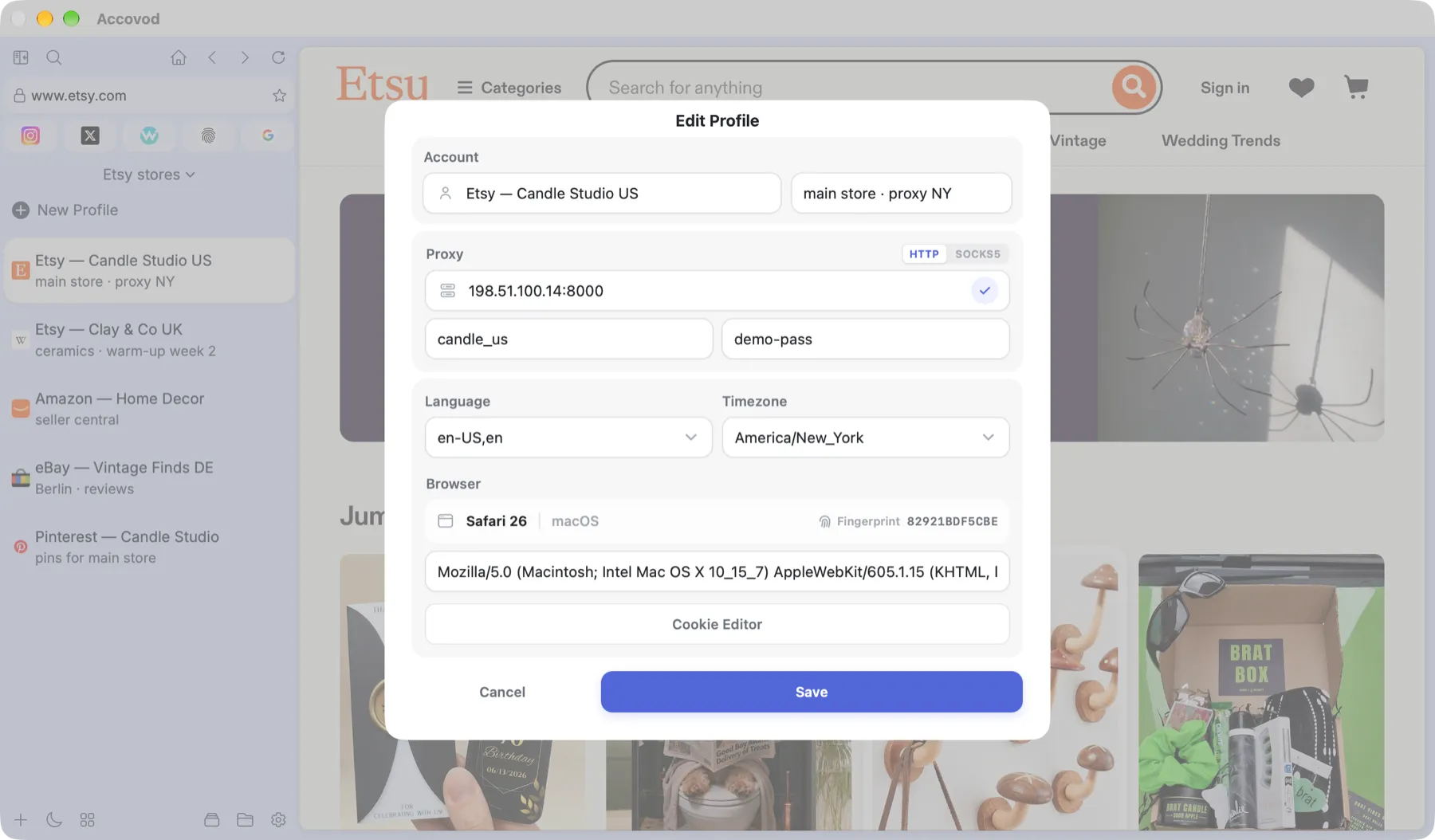
The edit form: proxy, language, timezone, User-Agent and Cookie Editor (macOS).
Reload or rebuild (macOS)
Section titled “Reload or rebuild (macOS)”Right-click the reload button above the address bar:
- Reload — a normal page reload.
- Recreate — the profile’s tab is built from scratch. It helps when a page hangs on a dead proxy or after you change the protection mode in Settings. Cookies and site data are kept.
Order and folders
Section titled “Order and folders”- Drag a profile to move it in the list. The order is saved.
- To keep a long list manageable, sort profiles into folders.
- On Windows, you can change the proxy, language or timezone of every profile in a group at once with Groups → Mass edit profiles. See Groups and folders.
Deleting
Section titled “Deleting”Delete removes the profile at once — no confirmation and no trash. Gone with it:
- the card in the list and its cloud copy (for a cloud group);
- cookies, LocalStorage and cache — you’ll have to log in to the account from scratch.