Profiles
Creating a profile
Every field of the New Profile form in Accovod — website, name, note, proxy, language, timezone, browser, cookie login and Walker warm-up.
Open the form with New Profile above the list, or with + at the bottom of the list → New Profile.
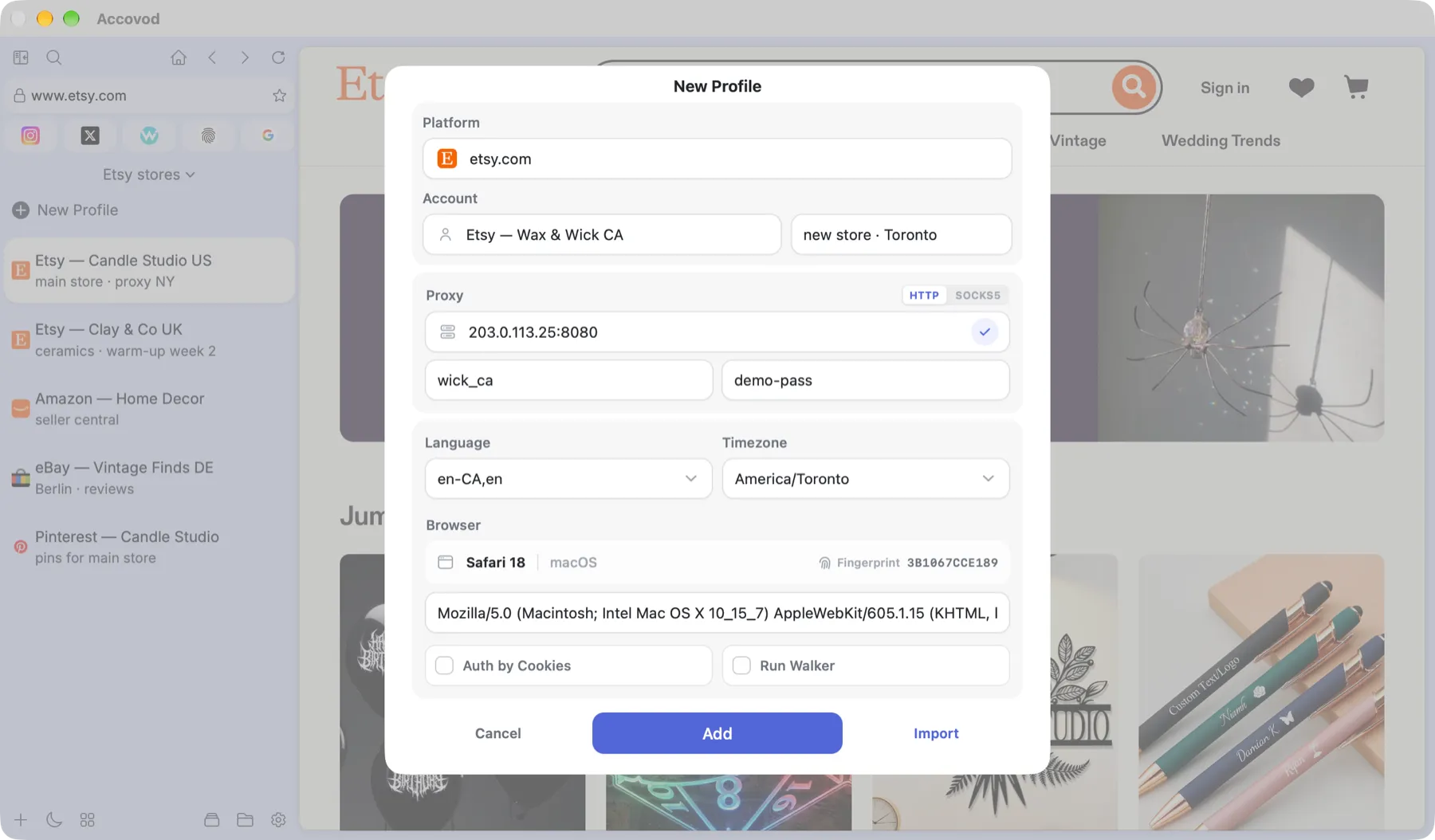
The New Profile form on macOS.
Account
Section titled “Account”| Field | What to enter |
|---|---|
| Platform | The site the profile opens: facebook.com, etsy.com. The Home button opens this page too. Focus the empty field to see popular and recent sites. |
| Account | The profile’s name in the list. Leave it empty and Accovod names it Account 123. On Windows you can enter login:password here for auto-login — see below. |
| Note | A note such as “warm-up, week 2” or “card ending 4411”. Only you see it. |
Pick HTTP or SOCKS5 and paste the address — host:port or host:port:login:password. The check mark on the right tests the proxy and shows IP, country and Fraud Score.
Formats and checks are covered in Connecting a proxy and Proxy check.
Language and timezone
Section titled “Language and timezone”- Language — the languages the browser reports to sites, such as
en-US,enorde-DE,de. Pick one from the list or type your own. - Timezone — for example
America/New_York. Locale means your computer’s timezone.
Both should match the proxy’s country. A US IP with Moscow time and Russian language looks suspicious.
Browser and fingerprint
Section titled “Browser and fingerprint”The profile runs on WebKit. By default it presents itself as Safari — change that in Settings under Default Useragents.
Under Browser, pick the engine:
| Engine | When to choose it |
|---|---|
| Chrome | The main option. Suits most sites. |
| Edge (Beta) | When a site needs Microsoft Edge specifically, or misbehaves in a Chrome profile. |
The engine is chosen once, at creation — the edit form can’t change it. Which browser a profile presents itself as by default is set by Default Useragents in Settings.
- The line under the heading shows which browser and operating system the profile presents itself as.
- User-Agent can be overwritten by hand, but you rarely need to.
- Fingerprint is a short fingerprint ID. It changes together with language, timezone or User-Agent, which shows the profile now looks like a different device.
The fingerprint comes from the Accovod service when the profile is created; you never assemble it yourself. See How the fingerprint works.
Extras
Section titled “Extras”- Auth by Cookies — opens a window to paste cookies, so the profile starts out logged in. See Cookies and logging in.
- Run Walker — before the site opens for the first time, the profile visits a list of other sites to build up history. See Walker.
Auto-login with login and password (Windows)
Section titled “Auto-login with login and password (Windows)”Type login:password in Account and Accovod stores the login details. On supported sites it opens the login page and fills in the fields itself, and the login becomes the profile name. To sign in again later: right-click the page → Repeat authorization.
The login details are kept in the profile, in the Login Data field of the edit form.
Buttons
Section titled “Buttons”- Add — create the profile. It opens right away.
- Import (macOS) or Bulk (Windows) — add many profiles at once. See Bulk import.
- Cancel — close the form without saving.