Workspace
The main window
The Accovod interface on macOS — profile list, address bar, favorites, switching groups, previews of all profiles, themes and keyboard shortcuts.
On the left is the profile list of the current group; on the right, the browser of the selected profile. Everything else is buttons around the list.
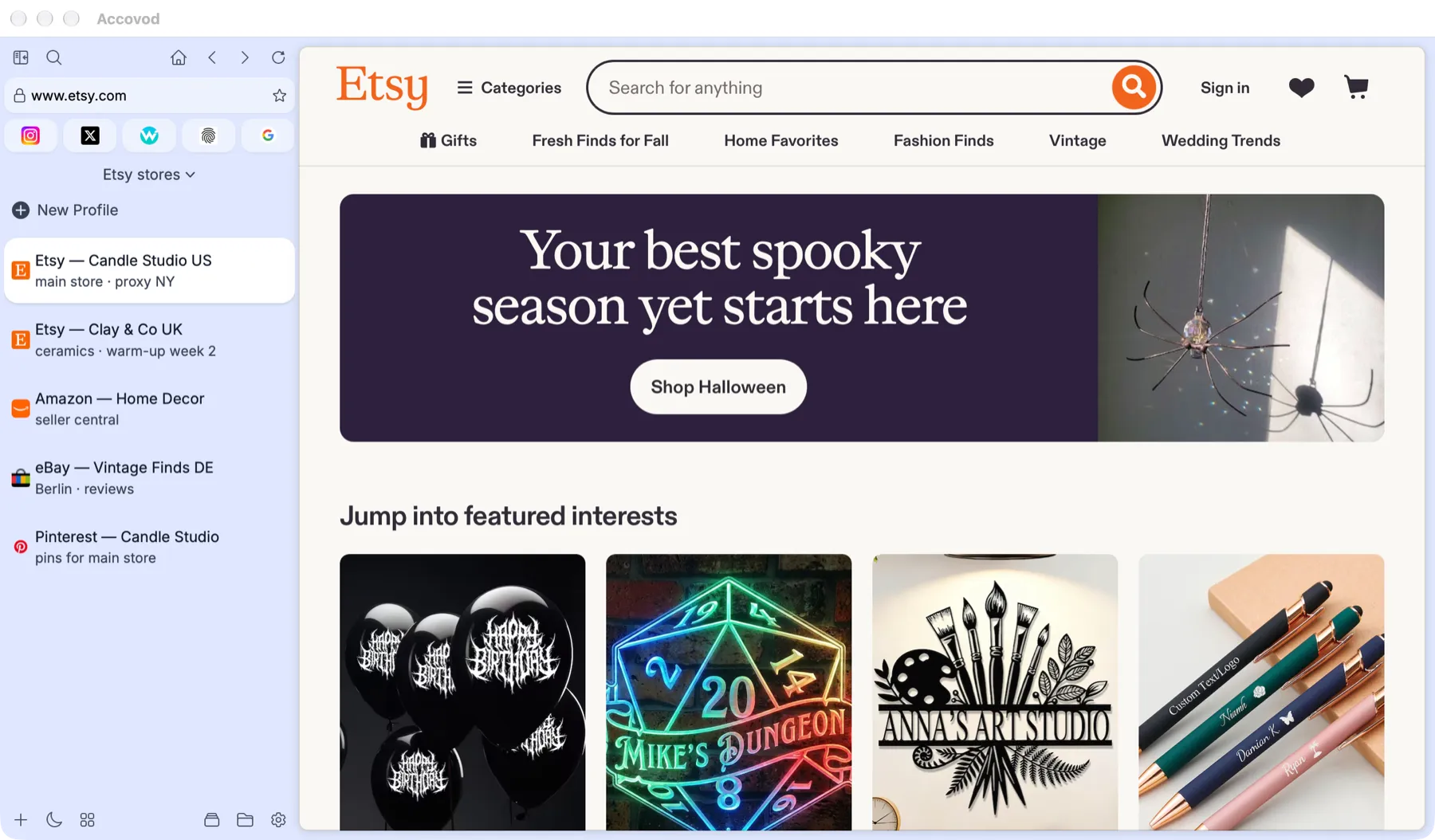
The main window: navigation, address bar, favorites, group and profile list (macOS).
Top bar
Section titled “Top bar”| Button | What it does |
|---|---|
| Sidebar icon | Collapses the list into a narrow strip and back. |
| Magnifier | Search profiles by name and note. |
| House | Opens the profile’s start site — the one in Platform. |
| ‹ › | Back and forward through history. |
| Reload | Reloads the page. On macOS, right-click for Reload / Recreate, see Editing profiles. |
Address bar
Section titled “Address bar”- Type an address and press Enter to open it in the current profile.
- Shift + Enter opens the address in every profile of the group at once. Handy for going to the same page in all accounts.
- Type words instead of an address and Accovod searches with the engine set in Settings: DuckDuckGo, Google or Perplexity.
- As you type, suggestions appear: sites you’ve opened before, company sites by name and search queries. Pick one with the arrow keys and press Enter; Tab puts the selected site’s address into the bar; Esc hides the list.
- The star on the right adds the page to favorites.
Favorites
Section titled “Favorites”The bar under the address bar holds favorite pages. It’s shared by all profiles:
- a click opens the page in the current profile;
- to remove a page, drag it onto the trash icon that appears at the top.
Files and app links
Section titled “Files and app links”- Files download through the profile’s proxy and with its cookies, so files that are only available after signing in download too. Accovod asks where to save each file, and text files open right in the tab, as in a regular browser.
- Links to mail, calls and messengers — mailto:, tel:, Telegram, WhatsApp, Viber, Discord, Slack, Zoom, Teams — open the matching app when you click them, if it’s installed.
Groups
Section titled “Groups”Below the favorites is the name of the current group. Click it to:
- switch to another group;
- create one with +;
- open the Groups window with the folder icon.
See Groups and folders.
Profile list
Section titled “Profile list”- Click opens a profile.
- Shift + ↑ / ↓ — previous or next profile.
- Drag to reorder and to move profiles into folders.
- Profile menu — Edit, Rename, Note, Delete. On macOS it opens with a right-click, on Windows with the pencil on the card. See Editing and deleting.
- The notification badge on a card shows unread items on the site. Requires Check Notifications in Settings.
On macOS, when an AI agent is driving a profile, an agent plaque with a stop button appears above the list. See Safety and control.
Bottom bar
Section titled “Bottom bar”| Button | What it does |
|---|---|
| + | Quickly create a group, folder or profile. |
| Moon | Theme: Light, Dark, Ocean, Forest, Ivory, Rose, Nord. macOS also has Classic. |
| Tiles | Preview — every profile of the group as a thumbnail. Click one to switch to it. On Windows, this is also where the Synchronizer is set up. |
| Automator | The scenario builder. See Automator. |
| Folder | The Groups window: create, load, export and share. |
| Gear | Settings. |
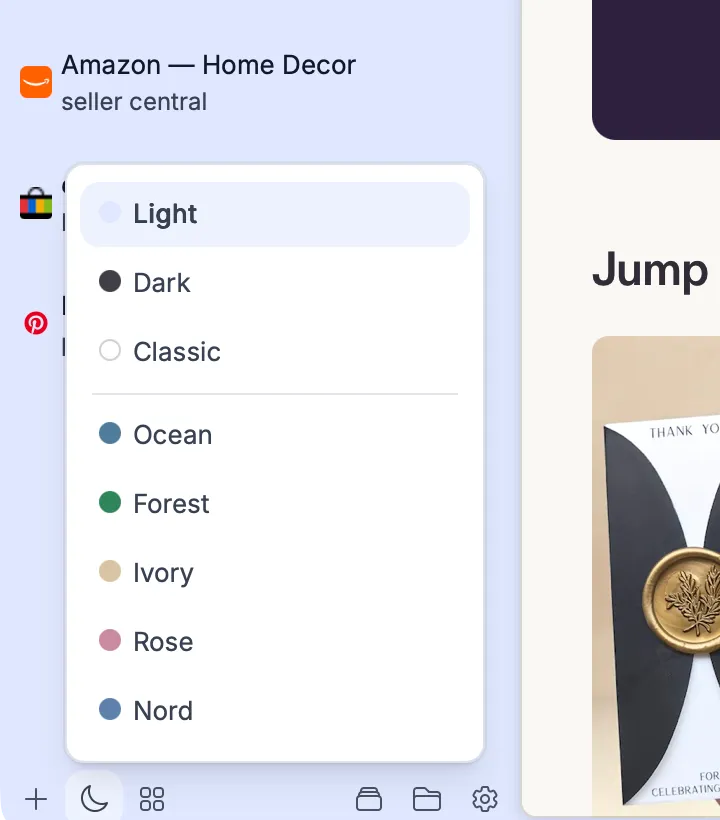
Themes open from the moon button (macOS).
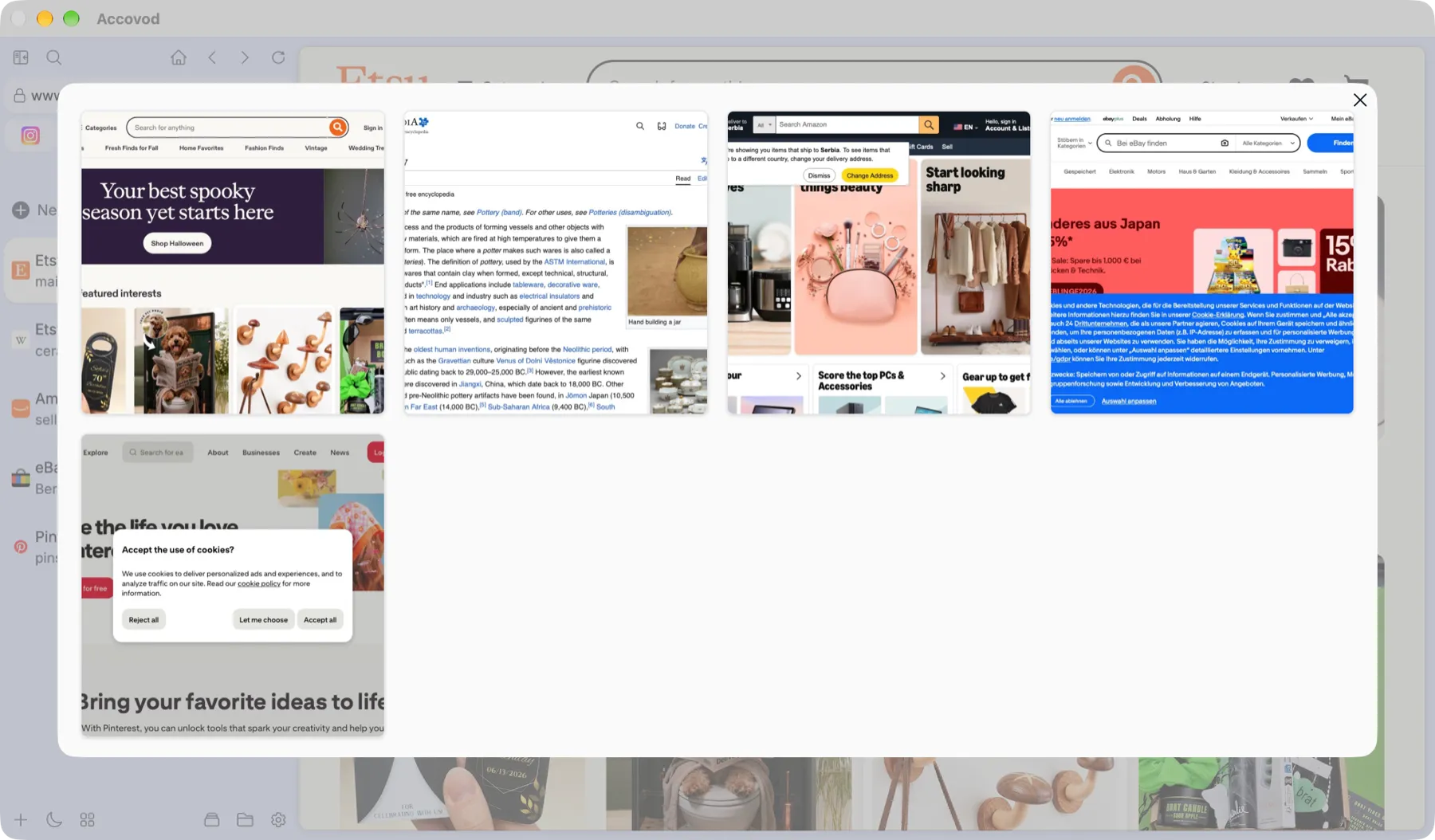
Preview: thumbnails of every profile in the group; click one to switch (macOS).
Page menu
Section titled “Page menu”Right-clicking an open page shows extra actions.
- Insert text by typing (in a text field) — enters the clipboard text one character at a time, as if typed. Useful on sites that block paste or treat it as suspicious.
- Take Screenshot — saves a PNG of the page.
- ⌘ + + / ⌘ + − — page zoom.
| Item | What it does |
|---|---|
| Insert text by typing | Enters the clipboard text one character at a time, as if typed. |
| Copy link address, Save image | For links and images. |
| Take a screenshot | Saves a snapshot of the page. |
| Tab resolution | Tab size: default, iPhone 16 (393×852), iPad Pro (1024×1366), Pixel 8 (412×915) or custom. Handy for checking a site’s mobile version. |
| Simulate touch | The site receives touches instead of mouse clicks — for mobile versions of sites. |
| Repeat authorization | Sign in again with the profile’s login and password. Shown when they’re set. |
| Automator | Run an Automator task in this profile, in all at once or in turn, or stop all tasks. See Automator. |
| Synchronizer | Start or stop the Synchronizer. |
| Edit profile | Open this profile’s edit form. |
Keyboard shortcuts
Section titled “Keyboard shortcuts”| Action | Keys |
|---|---|
| Open an address in every profile of the group | Shift + Enter in the address bar |
| Previous / next profile | Shift + ↑ / ↓ |
| Page zoom (macOS) | ⌘ + + / ⌘ + − |
| Stop the AI agent (macOS) | ⇧ + ⌘ + . |