Tools
Automator — no-code scenarios
How to automate repetitive work in Accovod — steps, picking elements with the mouse, conditions and loops, data lists and running in every profile at once.
Automator repeats routine actions for you — open a page, click a button, type text — in one profile or in every profile of the group.
Open it with Automator on the bottom bar.
| Step | What it does | What to set |
|---|---|---|
| Navigate | Opens an address | A URL, such as https://example.com/settings |
| Click | Clicks an element | The element — chosen with Pick Selector |
| Type | Types text into a field | The field (Pick Selector) and the text |
| Wait | Pauses | Seconds, from 0 to 3600 |
| JS Code | Runs JavaScript on the page | The code |
Steps run top to bottom. Drag to reorder, click the cross to remove a step.
Building a scenario
Section titled “Building a scenario”- Open the profile and the page you’ll be working with.
- In Automator, click Add step and pick the step type.
- For Click and Type, click Pick Selector, then click the element on the page. Automator remembers it and shows what was picked.
- Add the remaining steps. After actions that load a new page, add a 2–5 second Wait.
- Click Run to test the scenario in the current profile.
Running on every profile
Section titled “Running on every profile”Run All Profiles runs the scenario in each profile of the group in turn. If something goes wrong in one profile, Automator marks the error and moves on. In Only Active mode, Automator opens profiles one at a time itself, so a run takes longer.
Stop halts the scenario at any moment.
Projects
Section titled “Projects”Save project saves the scenario to a .json file; Load project loads a saved one. You can share the file with a colleague.
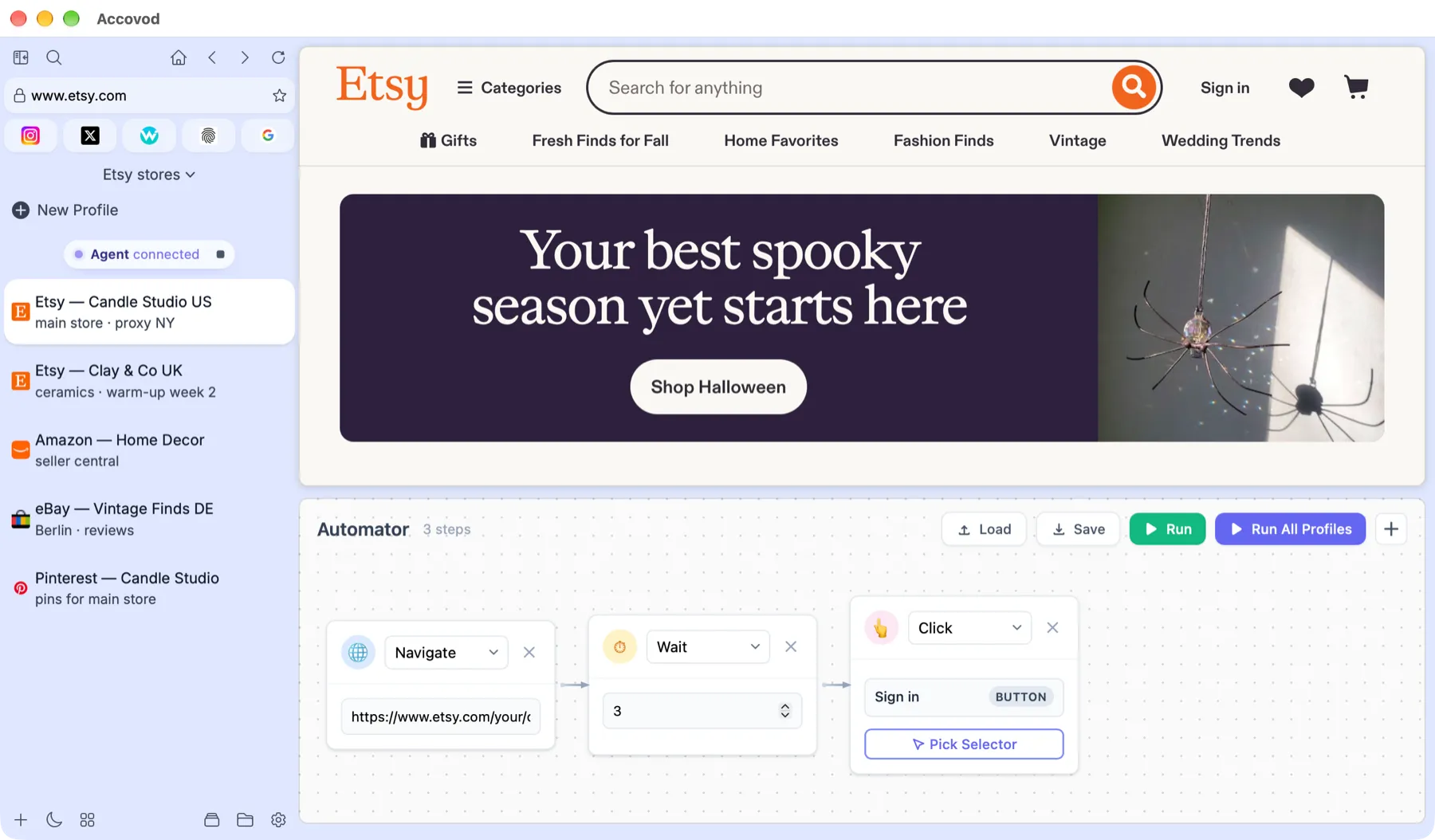
An Automator scenario on macOS: open the orders page, wait 3 seconds, click a button.
| Step | What it does | What to set |
|---|---|---|
| Open | Opens an address | A URL |
| Click | Clicks an element or a point | The target — with Pick |
| Type | Types text into a field | The field (Pick) and the text. You can insert a line from a list |
| Wait | Pauses | Min and Max seconds — the pause is picked at random within them |
| Repeat | Repeats the nested steps | Repeat count and the steps inside |
| If | Runs the nested steps only when the condition holds | Left side, operator (=, !=, Contains, Not contains) and right side |
| Key | Presses a key | The key code |
| Value | Saves an element’s text to a variable | The element and a variable name. Use the variable name later in an If step |
| JS | Runs JavaScript on the page | The code |
| Stop | Stops the scenario in this profile | — |
Drag steps to reorder; Repeat and If can hold other steps.
Pick chooses an element by clicking it on the page. To specify it precisely, click Show Selector and enter CSS or XPath.
Building a scenario
Section titled “Building a scenario”- Open the profile and the page you’ll be working with.
- In Automator, click Add and pick the step type.
- For Click, Type and Value, click Pick, then click the element on the page.
- Put a Wait between actions — say 2 to 5 seconds. A random pause looks more natural.
- Click Run → Active profile to test the scenario.
Running
Section titled “Running”The Run button, or right-click a page → Automator:
| Option | How it works |
|---|---|
| Active profile | Only in the open profile. |
| All at once | In every profile of the group at the same time. Fast, but heavy on the computer. |
| All in turn | In every profile, one after another. |
| Stop all | Stop every running task. |
Projects
Section titled “Projects”The Project menu: Save stores the scenario in a file, Load loads one, Clear starts from scratch.
More → Lists holds lists of lines to insert: comment texts, names, addresses. Each list is its own set of lines, and can be loaded from a file (Load from file).
For each list, choose how lines are taken:
- Pick rows at random — a random line; unchecked, lines go in order;
- Delete used rows — remove a line once used, so it never repeats.
To insert a line, put the list name in double curly braces in the step’s field: {{comments}}. Each profile gets its own line.
Scripts
Section titled “Scripts”More → Scripts holds your own JavaScript that Accovod runs on every page by itself. Unlike the JS step, you don’t start it: a script fires on every page load in every profile — on any site, after following a link and after a reload.
What it’s for:
- Removing clutter — hide cookie banners, pop-ups, ads or distracting blocks on sites you work with every day.
- Tailoring a site — add styles, enlarge the font, highlight the buttons you need.
- Automating routine — for example, close the same dialog or expand a hidden block right after the page loads.
- Preparing a page for Automator — declare a function that the scenario’s JS steps then call.
How to use it
Section titled “How to use it”- Open Automator → More → Scripts.
- Click New and enter a name.
- Paste the code into the field on the right. It is saved as you type — there’s no separate button.
- Open or reload a page in a profile: the script runs.
To turn a script off, select it in the list and click Delete. You can keep several scripts — all of them run, one after another.
How it works
Section titled “How it works”-
A script runs in every profile on the Chrome engine, in every group. Scripts don’t run in Edge profiles.
-
It runs in the main page, not in embedded frames (
iframe). -
It starts at the very beginning of the load, before the page content exists. To work with elements, wait for the page:
document.addEventListener('DOMContentLoaded', () => {// the page is built by now}); -
A script fires on every site. To limit it to one site, check the address:
if (location.hostname.endsWith('etsy.com')) {document.addEventListener('DOMContentLoaded', () => {document.querySelector('.cookie-banner')?.remove();});} -
The script text can use placeholders:
$(URL)is replaced with the address of the page being loaded,$(UID)with the profile’s tab number. -
Scripts are stored on your computer in the
cef\scriptsfolder next to the program, one.txtfile per script. They aren’t sent to the cloud or to other group members. When moving to a new computer, copy this folder along withcef\sessions.
Walker
Section titled “Walker”More → Walker opens the warm-up window. See Walker.
- Pick elements with the mouse. Automator remembers an element by several traits at once and finds it even when the page changes a little.
- Don’t rush. Sites notice actions spaced a fraction of a second apart. Add pauses.
- For complex tasks with reading data and decisions on the fly, on macOS you can connect an AI agent.