Workspace
Groups and folders
How to organize profiles in Accovod. Local and cloud groups, switching between them, the Groups window and folders inside a group.
With dozens of profiles, it helps to split them up. Accovod has two levels for that:
- Group — a separate set of profiles: a project, a client, a line of work. One group is open at a time.
- Folder — a way to organize profiles inside the open group.
Local and cloud groups
Section titled “Local and cloud groups”| Local | Cloud | |
|---|---|---|
| Stored | Only on this computer | In Accovod Cloud |
| Available on iPhone | No | Yes |
| Can be shared with a colleague | No | Yes, by email |
| Profile limit | None | Depends on plan |
Cloud groups are available on the Cloud plan and above.
Switching groups
Section titled “Switching groups”Click the group name above the profile list and pick another. Accovod saves the current group and loads the one you picked. A cloud group loads over the network, which can take a few seconds.
On macOS the window doesn’t freeze while profiles download from the cloud: a loading screen covers the tabs. If the connection drops and the group doesn’t open, click Try Again, or go back to the group you were in with Back to “…”.
The Groups window
Section titled “The Groups window”Opened with the folder icon on the bottom bar or from the group drop-down.
All groups are on the left, the profiles of the selected one on the right. Buttons:
| Button | What it does |
|---|---|
| New | Create a group — local or cloud. It opens right away, empty. |
| Load | Open the selected group. |
| Pencil | Rename. The Convert to Cloud Group checkbox here turns a local group into a cloud one. |
| Export | Save the group’s profiles to a file. See Teamwork. |
| Share Group | Give another Accovod user access to a cloud group by email. |
| Delete | Delete the group with all of its profiles. |
The buttons above are everything the window has on macOS.
On Windows the window also has:
| Button | What it does |
|---|---|
| Backup | Backups of a local group: Accovod keeps several recent versions, and any of them can be restored. See Teamwork and migration. |
| Mass edit profiles | Set one value for every profile of the open group: proxy (address, login, password), timezone or language. Accovod asks for confirmation first. |
| Pencil → arrows | In the edit window, pick a second group and move profiles between the two with < > (one at a time) and << >> (all), or merge the groups. |
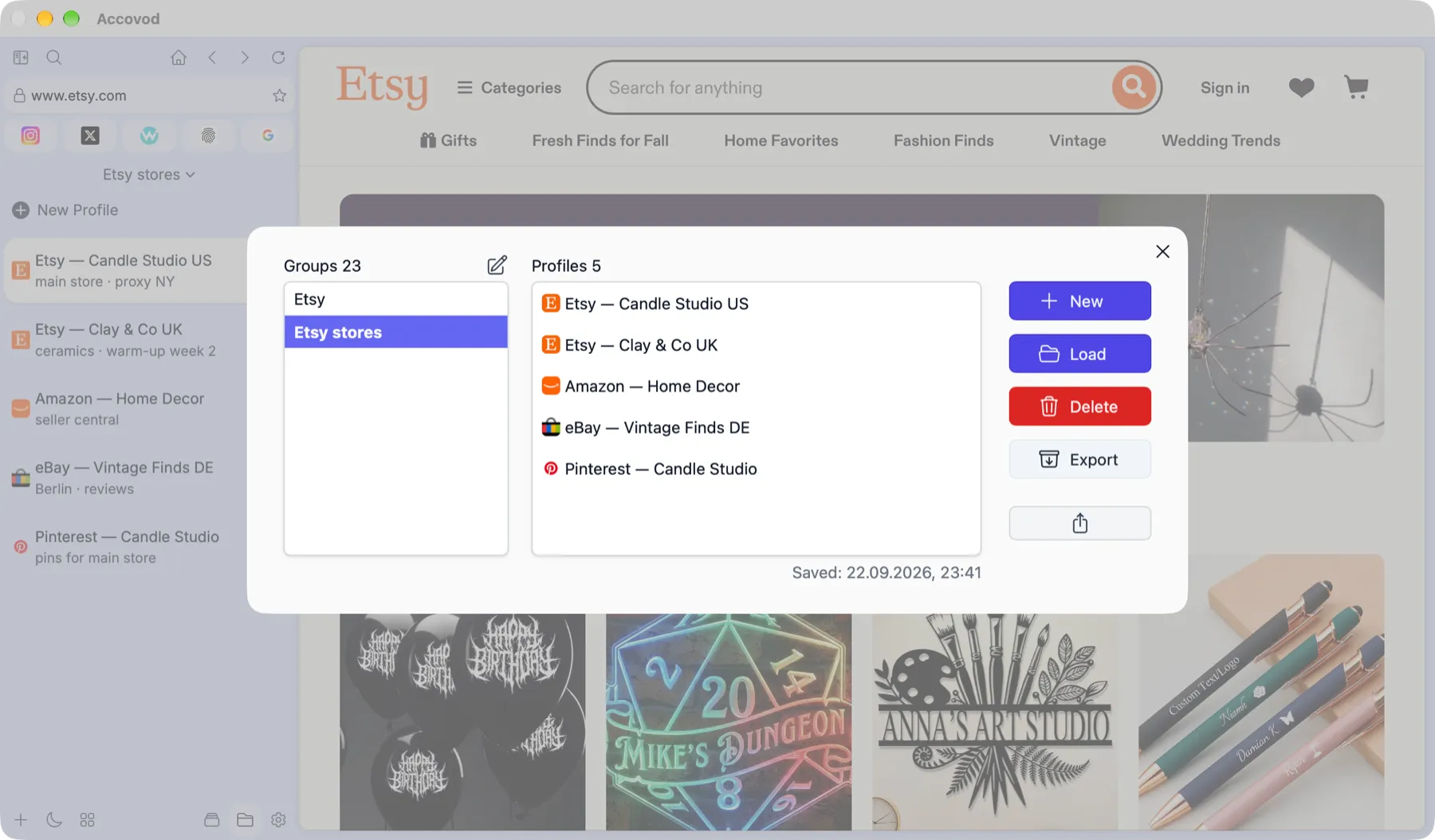
The Groups window: the group list, the profiles of the selected one and the controls (macOS).
Folders
Section titled “Folders”Folders keep a long list tidy: “Warm-up”, “Active”, “Under review”.
- Create: + on the bottom bar → New Folder. Enter a name, pick an icon and press Enter.
- Add a profile: drag it onto the folder.
- Collapse or expand: click the arrow next to the folder.
- Rename: double-click the name.
- Delete: the delete button on the folder. Profiles aren’t deleted — they move back to the main list.
Folders live inside a group; each group has its own.